
How to connect Lovon to iOS Focus Mode for quiet sessions
Set up lovon ios focus mode for quieter voice sessions. Choose allowed contacts, reduce app alerts, and test manual or app-based Focus activation.

Key Takeaways
- For lovon ios focus mode, use an iPhone custom Focus to limit notifications during voice sessions.
- Keep essential contacts allowed, and review app exceptions before your first conversation.
- An app-based Focus schedule follows app use, not the actual start or end of a conversation.
- Focus controls interruptions; it does not provide clinical care or establish conversation privacy.
Instead of silencing alerts one by one before every Lovon conversation, create an iPhone Focus that limits interruptions, then turn it on manually or when you open the app. This connects your quiet-session routine through iOS settings, not through an in-app integration or an account connection.
TL;DR
- For lovon ios focus mode, use an iPhone custom Focus to limit notifications during voice sessions.
- Keep essential contacts allowed, and review app exceptions before your first conversation.
- An app-based Focus schedule follows app use, not the actual start or end of a conversation.
- Focus controls interruptions; it does not provide clinical care or establish conversation privacy.
Why this matters
A message banner can pull your attention away just as you start explaining something difficult. An iPhone Focus gives you a repeatable notification boundary without changing every app's notification settings before each conversation.
Lovon is best for people seeking on-demand AI voice support for everyday emotional struggles, not licensed clinical care. Focus supports that use by managing interruptions around the conversation. It does not change what the app can provide.
You can learn about the app at Lovon. The setup below uses Apple's built-in Focus controls and keeps essential people reachable.
For your 2026 setup, choose the notification boundary first and the activation method second. Automatic activation is convenient, but a manual Focus gives you more control when you switch between apps during a session.
Before you start
- Have the app ready on your iPhone. Open it and confirm that you can reach the voice-conversation experience before configuring Focus. You also need access to the iPhone's Settings app; no separate Focus account is required.
- Choose who must reach you. Decide which family members, caregivers, or other essential contacts should remain allowed. Check whether your iPhone shares Focus settings with other Apple devices through Share Across Devices.
- Know the automation boundary. An app-based Focus schedule responds to opening and leaving the selected app. It does not detect the beginning or end of a voice conversation, and switching to another app can end that quiet window.
The instructions use English iPhone interface labels. Your installed iOS version determines the screens and controls you see in 2026; follow the matching labels on your phone rather than looking for a connection button inside the voice app.
Your custom Focus
Start with a separate Focus rather than changing a work or sleep routine you already rely on. A dedicated name makes it easier to recognize the setting in Control Center and avoids mixing different notification rules.
- Open Settings, then tap Focus.
- Tap the + button to add a Focus.
- Choose Custom.
- Enter a name in Name, such as Quiet Session. This is your own Focus name, not a product feature.
- Choose an icon and color that you can recognize, then tap Next.
- Tap Customize Focus to open its settings.
Expected result: Quiet Session appears as its own entry under Settings, Focus. Creating the Focus does not mean it is active yet.
Keep the name simple. You should be able to recognize it when you are tired or distracted, without having to remember whether a general-purpose Focus contains the right exceptions.
Do not add a schedule yet. First decide what the Focus allows, so your first automatic activation uses rules you have already checked.
Your notification exceptions
Use an allowlist if your goal is quiet with a few important exceptions. An allowlist names the people and apps that can interrupt you. A silence list does the reverse: it names the people or apps you want to mute while leaving others outside that list.
- Inside your custom Focus, tap People.
- Select Allow Notifications From.
- Tap Add People and select the contacts you need to hear from during a conversation.
- Review Allow Calls From. Choose the caller group that matches your needs, rather than assuming the notification list also covers every call setting.
- Review Allow Repeated Calls and decide whether repeated calls should break through.
- Return to the Focus settings and tap Apps.
- Select Allow Notifications From, then use Add Apps only for apps whose alerts you need during this quiet window.
- Review Time Sensitive Notifications. Turn it off if you do not want apps outside your allowlist to interrupt through that exception.
Expected result: The Focus has an explicit people list and app list. Alerts outside those rules are silenced, subject to exceptions such as permitted calls and Critical Alerts.
You do not need to add Lovon to the allowed-app list just to open it. That list controls notifications, not which apps you can use.
Choose a notification rule you understand
| Notification rule | Best for | Advantage | Limitation |
|---|---|---|---|
| Allow Notifications From | A quiet session with essential exceptions | Makes your interruption boundary explicit | You must remember to include needed contacts and apps |
| Silence Notifications From | Muting a small, known set of distractions | Leaves other notifications outside the silence list | Unlisted people or apps can still interrupt |
For this workflow, start with Allow Notifications From. A shorter exception list is easier to check than a long list of distractions.
Focus is not an absolute silence switch. Alarms can still sound, and permitted exceptions still matter. Review any contact-level Emergency Bypass settings before assuming a silenced contact cannot interrupt.
Your activation method
Choose how you want the quiet window to begin. Neither method needs access to your conversation content.
| Activation method | Best for | Advantage | Limitation |
|---|---|---|---|
| Manual activation | Conversations that include switching apps | You decide when the quiet window starts and ends | You must remember to enable and disable it |
| App-based schedule | Conversations kept in the selected app | Focus follows use of the selected app | Opening the app is not the same as starting a session |
Start manually, then add automation after testing. This separates notification problems from activation problems and makes the setup easier to check.
- Open Control Center. On an iPhone with Face ID, swipe down from the top-right corner; on an iPhone with a Home button, swipe up from the bottom edge.
- Touch and hold Focus to see your Focus list.
- Tap Quiet Session to activate it.
- Open the voice app and begin your conversation through its normal controls.
- When you finish, return to Control Center, open Focus, and tap the active Focus to turn it off.
Expected result: The custom Focus shows as active while you talk and turns off when you disable it. You still start the conversation yourself.
For a bounded window, use the … beside the Focus in Control Center and choose For 1 hour. That is a Focus duration, not a recommended session length; you can turn it off sooner.
The routine is straightforward: choose the boundary, activate it, talk, and restore your usual notifications afterward.
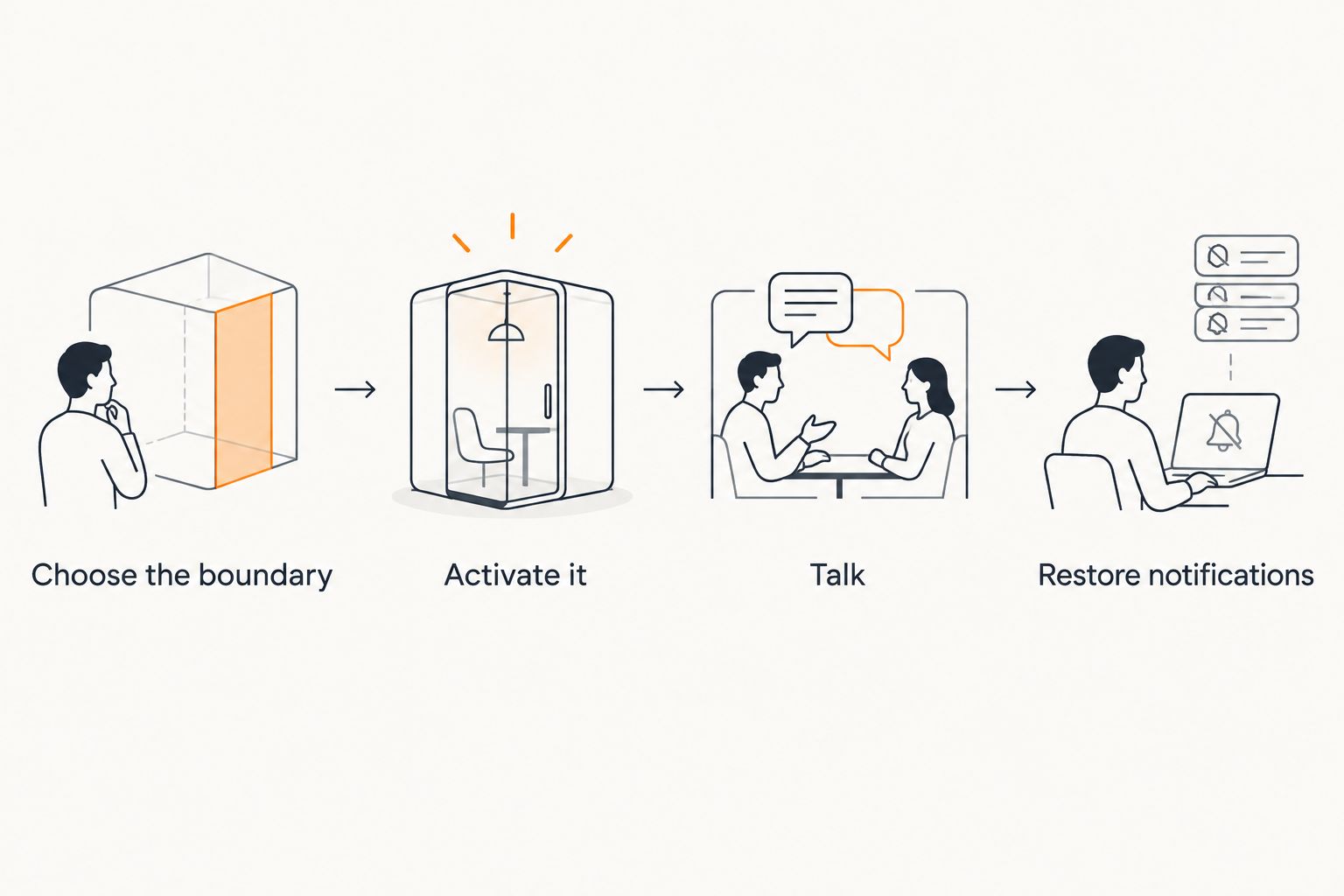 Four steps for choosing notification rules, activating Focus, talking, and restoring notifications
Set the notification boundary before starting your conversation.
Your first test
Test the setup before relying on it for a conversation you do not want interrupted. A brief rehearsal checks both sides of the boundary: distractions stay quiet, and essential people remain reachable.
- Turn on Quiet Session through Control Center.
- Ask someone outside your allowed list to send a test message. Check whether it produces an interruption while you use the phone.
- Ask an allowed contact to send a message or make a call, according to the exceptions you selected.
- Open the voice app and confirm that speaking and listening work as expected.
- Turn the Focus off and confirm that the active indicator disappears.
Expected result: Your notification behavior matches your choices, and voice access still works. If something interrupts, inspect the relevant exception before changing the whole setup.
You can reserve 2 minutes for this rehearsal. That is a suggested planning window, not a setup-time guarantee.
For a 2026 notification check, also inspect any additional interruption controls shown on your device. If Intelligent Breakthrough & Silencing appears, review it rather than assuming your people and app lists are the only rules in effect.
Automatically enable Focus when you open the app
Best for: keeping the conversation app in the foreground. An app-based schedule removes the manual activation step, but it cannot tell whether you are talking, reading, or simply checking the app.
- Open Settings, then Focus, and select Quiet Session.
- Under Set a Schedule, tap Add Schedule.
- Choose App.
- Select Lovon from the app list.
- Leave the app, then reopen it to test the schedule.
- Open Control Center and check whether Quiet Session is active.
- Switch to another app and check the Focus status again.
Expected result: Focus activates when you use the selected app and follows that app-based schedule. It does not automatically begin a voice conversation.
If the app does not appear in the picker, use manual activation instead. Do not substitute a browser and expect the same boundary: a browser-based app schedule applies to the browser, not just one website.
In 2026, keep app-based activation separate from session-based automation. One follows app use; the other would require a supported session event. This guide uses the built-in iOS app schedule, not a claimed in-app session trigger.
Troubleshooting
Messages or calls still interrupt
Check People, Apps, Allow Calls From, Allow Repeated Calls, and Time Sensitive Notifications. An allowed contact or app is behaving as configured, even when the interruption feels unwanted.
Also review Emergency Bypass for the relevant contact and any enabled Critical Alerts. Change the specific exception rather than removing every essential contact.
Focus turns off when you switch apps
An app-based schedule follows the selected app rather than your intention to keep talking. Switching to Notes or another app changes that context.
Use manual activation for conversations that involve switching apps. Test the full routine again before relying on the longer quiet window.
The microphone does not work
Focus does not grant microphone access. Open Settings, then Privacy & Security, then Microphone, and check the permission for the voice app.
If permission is enabled, check your audio connection and whether sound is going to connected headphones. Do not change notification exceptions to fix an audio problem.
Other Apple devices become quiet too
Open Settings, then Focus, and review Share Across Devices. Disable it if you want this Focus routine confined to the iPhone rather than shared with your other signed-in Apple devices.
Remember that silencing the iPhone alone does not silence an unrelated device. A nearby computer can still interrupt your conversation through its own notifications.
You finish but forget to turn Focus off
Use the For 1 hour option when activating manually, or make checking Control Center part of ending your conversation. A timed window limits how long forgotten manual activation lasts.
Do not assume closing a conversation turns off a manually enabled Focus. Check the active status yourself.
Customize your workflow
Keep the first version small: a recognizable Focus name, essential contacts, and an activation method you understand. Add complexity only when it solves an interruption you actually encounter.
For a suggested 10-minute check-in, you can activate Focus manually, talk, and turn it off afterward without adding an automation. The duration is your choice, not a clinical recommendation.
If opening Lovon should be your routine's cue, compare this setup with the guide to automatically silencing notifications when you start a session. Keep the distinction clear between opening an app and starting a conversation.
Revisit your exceptions when responsibilities change. A contact list that suited a quiet evening might not suit a day when someone depends on reaching you.
FAQ
How do I connect Lovon to iOS Focus Mode?
Create a custom Focus in iPhone Settings, choose notification exceptions, and activate it manually or through an app-based schedule. This workflow uses iOS controls rather than an account connection inside the app.
Does Focus Mode automatically start a voice session?
No. A Focus changes notification behavior; an app-based schedule activates that Focus when you use the selected app. You still start the conversation through the app's normal controls.
Do I need to allow the voice app in Focus settings?
No, not just to open and use it. The allowed-app list controls which apps can send notifications during that Focus, not which apps you can launch.
Can important people still call me during a quiet session?
Yes, when your Focus call settings allow them. Review People, Allow Calls From, and Allow Repeated Calls, then test the settings with an essential contact.
Why does my Focus stop when I leave the app?
An app-based Focus schedule follows use of the selected app, not the length of your conversation. Use manual activation when you want the quiet window to continue while switching apps.
Will Focus Mode block every sound on my iPhone?
No. Alarms and permitted notification exceptions can still interrupt. Review your call rules, Time Sensitive Notifications, Critical Alerts, and relevant Emergency Bypass settings.
Does Focus Mode make an AI conversation private?
No. Focus manages interruptions, not the app's handling of conversation data. Review the app's current privacy information and choose a physical space where you feel comfortable speaking.
One last thing
Being able to reach support matters more than making your phone completely silent. Keep the people you depend on reachable, even if that means allowing an occasional interruption.
For your 2026 routine, make the final step a quick Focus-status check after talking. The goal is a quieter conversation, not accidentally missing the rest of your day. AI emotional support is not a replacement for licensed care or emergency help.
Related guides
How AI Support Helps You Heal
AI emotional support isn't about replacing human connection — it's about filling the gaps. The moments when you need to talk at 2 AM, when you don't want to burden your friends again, or when you simply need someone to listen without judgment.
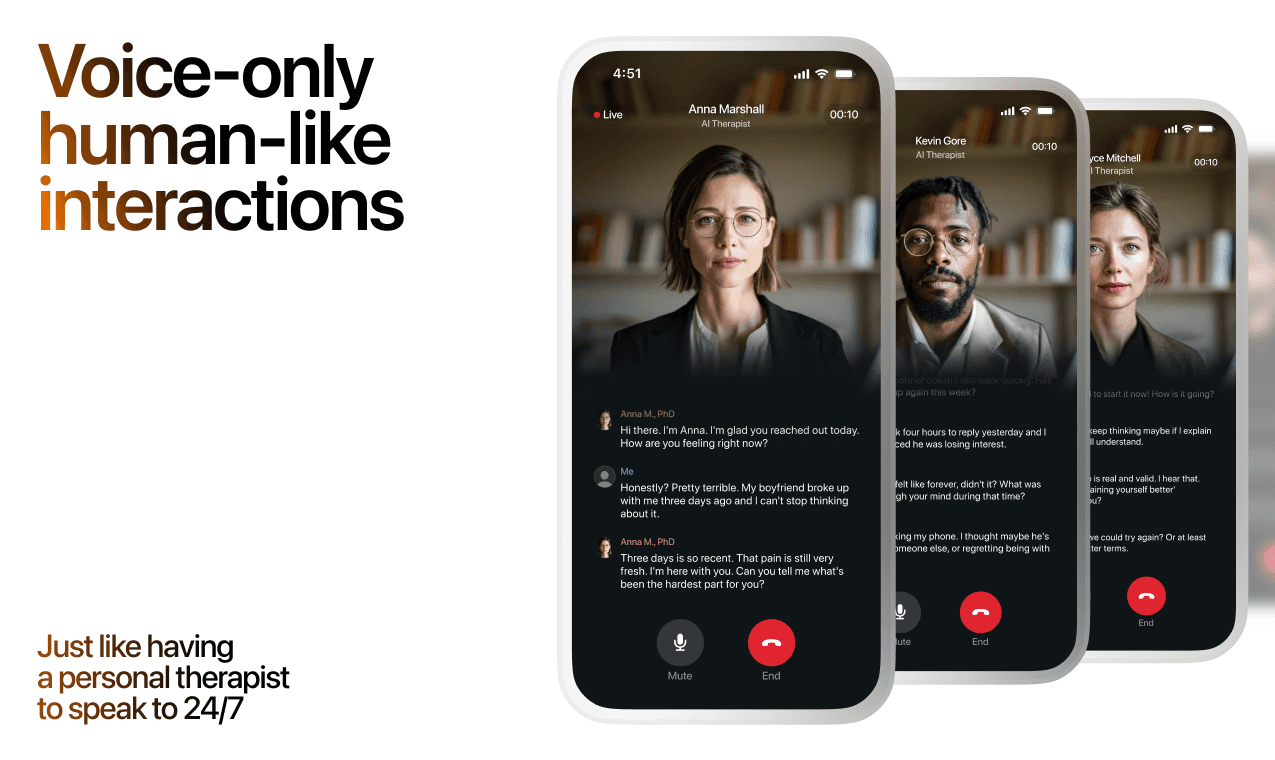
Here's what happens in a typical Lovon session:
You share what's on your mind
There's no script, no intake form, no waiting room. You speak or type whatever you're feeling — in your own words, at your own pace.
Lovon validates and explores
Using frameworks from CBT (Cognitive Behavioral Therapy) and motivational interviewing, Lovon acknowledges your feelings first, then gently helps you explore them. No dismissive "just move on" advice.
You build coping skills together
Lovon doesn't just listen — it actively works with you on evidence-based techniques: thought reframing, urge surfing, behavioral experiments, and more.
What a Session with Lovon Looks Like
Lovon is AI support, not a replacement for professional care. If things have been hard to get through for weeks, or you are thinking about harming yourself, talk to a doctor or a licensed therapist.
Ready to Start?
Your healing journey can begin right now
A 7-day trial. No judgment. Just a safe space to process what you're going through.
Frequently Asked Questions
Is Lovon a replacement for a real therapist?
Is my conversation with Lovon AI private?
How is Lovon different from ChatGPT for emotional support?
Can I use Lovon if I'm already seeing a therapist?
Can I try Lovon before subscribing?
About the Author

The Lovon Editorial Team
Mental Health & Wellness Content Team
The Lovon Editorial Team develops mental health and wellness content designed to make psychological concepts accessible and actionable. Our goal is to bridge the gap between clinical research and everyday life - helping you understand why your mind works the way it does and what you can do about it....
Related articles
- Best AI App for Focus and Productivity in 2026: Ranked
The best AI app for focus and productivity in 2026, ranked: Notion AI overall, Focusmate for accountability, Lovon for…
- PTSD Triggers 2026: How to Identify and Manage Them Daily
PTSD triggers explained: spot patterns in 14 days, use a 90-second grounding response, and build a daily routine that…
- How to Talk to an AI Therapist for the First Time (2026)
How to talk to an AI therapist: step-by-step guide for your first session in 2026, plus what to say, what to avoid, and…
- How to connect Lovon to Samsung Health for Android mood tracking
Use a manual lovon samsung health integration workflow for mood tracking. Review health context, reflect by voice, and…
See also
Quizzes
- Systemizing Empathizing Test: People or Systems First?
See whether minds or systems pull you first, in 3 minutes.
- Toxic Femininity Test: Which of 3 Patterns Is Yours?
See which learned script is running your relationship.
Free tools
- Write a Condolence Message for This Person
Get one condolence message written for your situation instead of a list of a hundred to choose from. Tell it who died…
- Write a Letter to Someone You Lost
Tell it who they were to you and what you never got to say, and it writes the letter back in your words. No account, no…
From the wiki
- Why do I feel sad when I'm alone?
Being alone does not create the sadness. It removes the noise that was keeping it out of earshot, so whatever queued up…
Disclaimer: This article is for informational purposes only and does not constitute medical advice, diagnosis, or treatment. Always seek the advice of your physician or other qualified health provider with any questions you may have regarding a medical condition. If you are in crisis or think you may have an emergency, call 988 (Suicide & Crisis Lifeline) or go to the nearest emergency room. Outside the US? Find a crisis line in your country.