
How to connect Lovon to Google Home for hands-free sessions
Lovon Google Home integration: use a phone-first audio setup, test compatible speaker playback, and keep microphone control and privacy in your hands.

Key Takeaways
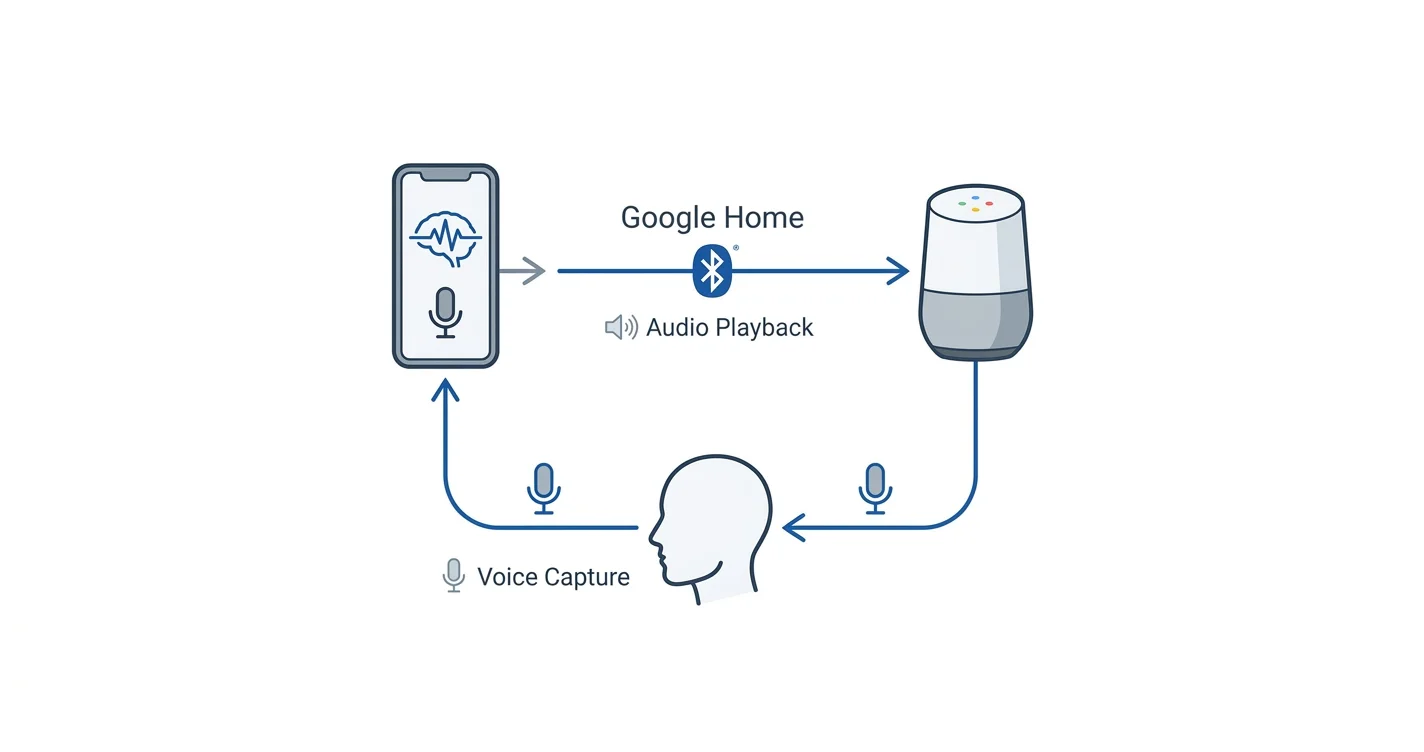
- Lovon Google Home integration should be approached as phone-led audio routing, not a verified native connection.
- Compatible Google Home speakers can play Bluetooth audio; pairing does not make their microphones available to your app.
- Test both playback and voice capture before discussing anything personal.
- Use your phone alone or headphones when shared-speaker playback would expose your conversation.
Instead of holding your phone throughout a conversation, use a phone-led audio setup for hands-free sessions: open Lovon on your phone, then test Bluetooth playback through a compatible Google Home or Nest speaker. This is an audio-routing workaround, not a native Lovon Google Home integration; your phone still runs the session and captures your voice.
TL;DR
- Lovon Google Home integration should be approached as phone-led audio routing, not a verified native connection.
- Compatible Google Home speakers can play Bluetooth audio; pairing does not make their microphones available to your app.
- Test both playback and voice capture before discussing anything personal.
- Use your phone alone or headphones when shared-speaker playback would expose your conversation.
Why this matters
Hands-free should mean less handling, not less control. A room speaker changes where other people can hear a response. It does not automatically change which microphone your app uses or which service receives your conversation.
Lovon is best for people seeking voice-based emotional support and self-reflection, not a replacement for licensed clinical care. The app provides coping tools and conversational support, but it is not a licensed clinician.
For your 2026 setup, separate three tasks: starting the app, sending its audio somewhere, and capturing your speech. A working connection for one task does not prove the others work. Keep the first test ordinary and impersonal.
Before you start
- Prepare the phone first. Have the app installed, complete any required sign-in, and confirm a voice conversation works through the phone before adding a speaker. You need access to the phone's Bluetooth and microphone permissions.
- Check the speaker and access. Use a Google Home or Nest speaker that supports Bluetooth playback, with access to its settings in the Google Home app. Follow the instructions for that specific model if its menus differ.
- Expect the microphone gotcha. A speaker paired for Bluetooth playback is not a Bluetooth headset. Its built-in microphones do not become the phone app's microphone through that pairing. Keep the phone nearby and choose a room where playback will not expose sensitive information.
You do not need to create a smart-home automation to test this arrangement. Start with a manual connection. Adding commands before the basic audio path works makes troubleshooting harder.
Choose your session arrangement
For a 2026 hands-free routine, choose according to privacy and reliable voice capture—not simply the largest speaker. These arrangements serve different needs.
| Arrangement | Best for | What it does well | Limitation |
|---|---|---|---|
| Phone alone, resting nearby | A simple first test | Keeps session controls and microphone on one device | Audio remains on the phone; room privacy still matters |
| Phone plus compatible Google Home speaker | Listening without holding the phone in a private room | Sends supported phone audio to the room speaker | Does not transfer microphone capture or session control to the speaker |
| Phone plus compatible headset | Shared homes or rooms where others might overhear | Keeps responses closer to your ears | Microphone routing depends on the headset, phone, and app; test it first |
Start with the phone alone, then add the room speaker only if it improves the experience. A connection that needs constant adjustment adds work rather than removing it.
Do not assume that music playback proves a conversational app will behave identically. Test the actual session, including your spoken input and the response, before settling into your chair.
Set up the phone session
- Open Lovon directly on your phone. Complete any access prompts before attempting speaker playback. Do not look for an undocumented smart-home account-linking option.
- Allow microphone access when your phone requests it. If you previously denied access, open the phone's Settings, find the app's permissions, and enable Microphone access. The route to that permission differs between phones.
- Start a conversation using the controls actually shown in the app. Use a neutral opening, such as asking for help organizing your thoughts about the day. Avoid names, health details, or relationship information during setup.
- Run a 10-second audio test with the phone resting where you plan to leave it. Speak at your normal volume and listen for a relevant response. This is a suggested setup check, not a performance specification.
Expected result: the phone captures your speech and plays the app's response without help from the Google Home speaker. If that does not work, fix the phone session first. Speaker pairing cannot repair a denied microphone permission or an unfinished sign-in.
Keep the phone within comfortable speaking distance. Hands-free does not mean placing the microphone across the room and raising your voice to reach it.
Configure Google Home Bluetooth playback
The Google Home app manages the speaker; the phone's Bluetooth settings establish the playback connection. Do not confuse connecting the speaker to your home network with pairing it to your phone for audio.
- Open the Google Home app and select the intended speaker's device tile. Check the device name carefully if your household has several speakers.
- Open Settings, then find Audio and Paired Bluetooth devices. On supported Google Home and Nest speakers, select Enable pairing mode. Follow model-specific instructions if those labels are not present rather than choosing unrelated settings.
- Open your phone's Settings, then Bluetooth. Select the speaker from the devices offered for pairing. Confirm that you are selecting the room speaker, not another household accessory.
- Play a short piece of ordinary phone audio. Adjust the volume from a low starting level, then stop playback before returning to the support app.
Expected result: ordinary phone audio plays through the selected speaker. This establishes a playback connection only. It does not install the app on Google Home, link a mental health account, or authorize the speaker to start sessions.
For this 2026 workflow, leave account linking out of the process unless official instructions explicitly require it. Bluetooth pairing is not a reason to enter your mental health app credentials into a third-party automation service.
Verify the complete conversation path
Now test the part that matters: a usable back-and-forth conversation. A connection indicator alone is not enough.
- Return to the app and start or resume a neutral test conversation. Keep the phone nearby, with its microphone unobstructed.
- Say one short sentence. Confirm that the response is relevant and that you can hear it through the intended output device.
- If the response stays on the phone, inspect the phone's audio-output controls. Select the speaker if it is offered. If the session does not use that route, return to phone playback rather than repeatedly reconnecting during a personal conversation.
- Set the speaker to a comfortable volume and listen for echo, repeated interruptions, or responses that suggest the app heard its own playback. Lower the volume and separate the phone from the speaker if this happens.
- End the test conversation yourself. Confirm you know how to stop the session before beginning a personal one.
Expected result: you can speak normally, hear the response, and stop the conversation without confusion. If any part fails, use the phone alone or a tested headset arrangement.
The working sequence is Phone session, Speaker pairing, Audio test, then Private conversation. Keep that order so you identify problems before sharing anything sensitive.
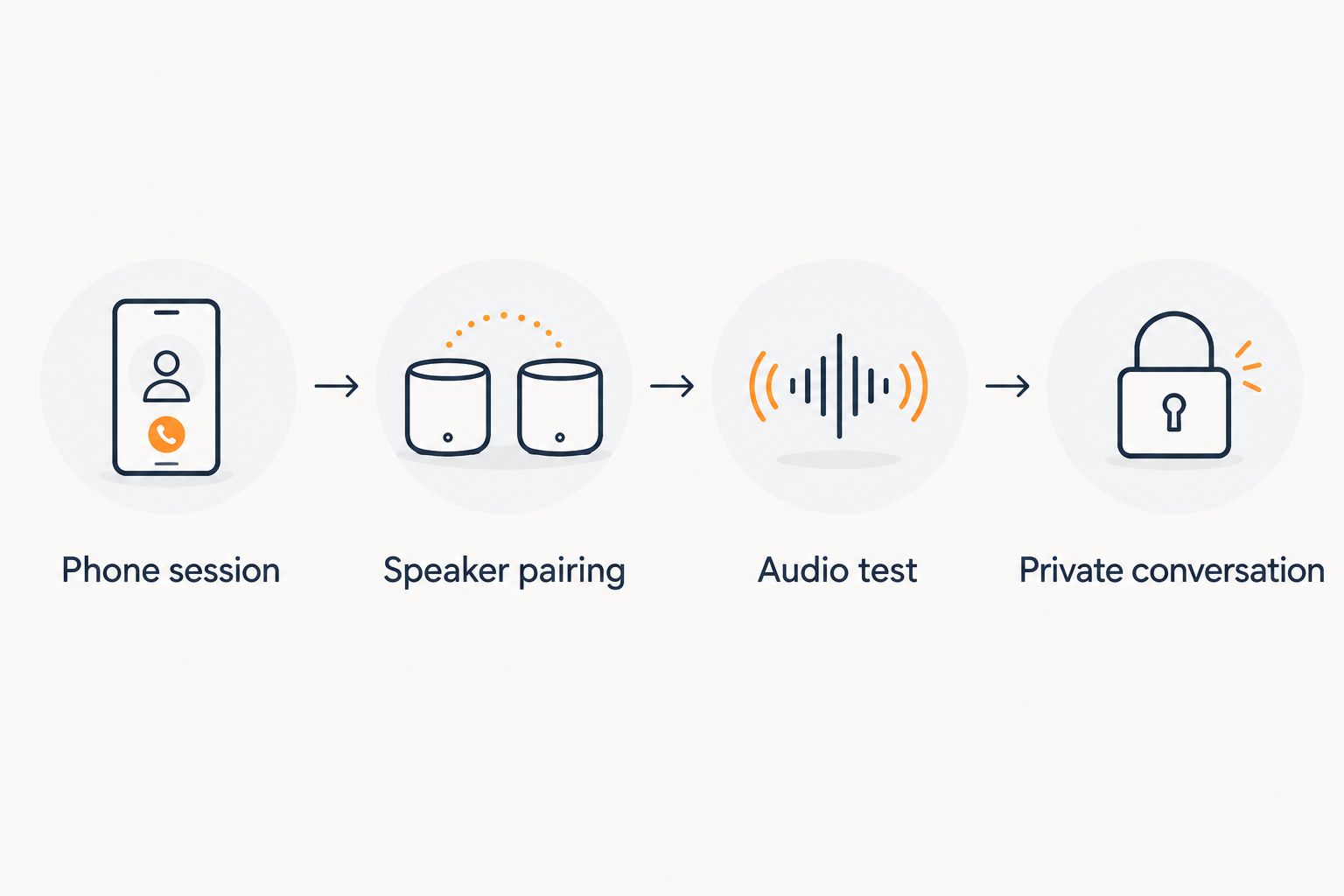 Four setup stages from starting the phone session to a private conversation
Test the full conversation path before sharing personal details.
Second workflow: keep the conversation on your phone
A useful alternative is a hands-free session without routing audio through Google Home. This removes the Bluetooth step and keeps your setup easier to inspect.
- Rest the phone on a stable surface near you. Keep its microphone clear of fabric, cushions, and your hand.
- Start the conversation manually. Choose a comfortable playback volume and check whether anyone nearby can hear it.
- Enable your phone's Do Not Disturb setting if you want fewer interruptions. Review allowed callers and exceptions first; this setting is not a promise that every interruption will stop.
- Try a 5-minute check-in as a personal starting point. Focus on one concern and end when you want to stop. The duration is a suggested routine, not a prescribed treatment schedule.
Expected result: you can talk without holding the phone, while keeping the session on one device. This is the simpler fallback when speaker routing is inconsistent.
For your 2026 routine, a reminder to begin is different from automatic recording. Keep the actual start under your control. Do not assume a smart-home command, reminder, or routine opens the app or starts microphone capture.
Troubleshooting
The speaker does not appear in Bluetooth settings
Put the speaker back into Enable pairing mode, then check the phone's Bluetooth list again. Verify that you selected the right speaker in Google Home. Move the phone closer during pairing and check whether the speaker is connected to another device.
Do not reset your entire smart home as a first step. Troubleshoot the phone-to-speaker connection separately from the speaker's home-network connection.
Music works, but session audio stays on the phone
Check the phone's current audio-output selection during the session. Audio routing can differ between media playback and conversational apps. If the speaker is not offered or the route does not work, use the phone output.
Successful music playback is not proof of session compatibility. Avoid changing several settings at once; make one change, then repeat the neutral test.
You hear responses, but the app does not hear you
Check microphone permission on the phone and move the phone closer. Bluetooth speaker playback does not make the Google Home microphone available to the app. Speak toward the phone, not toward the smart speaker.
If voice capture fails even without Bluetooth, troubleshoot the phone session independently. Disconnecting the speaker helps isolate the problem.
The conversation echoes or interrupts itself
Lower the speaker volume and move the phone farther from the speaker while keeping it close enough to capture your voice. Loud playback entering the phone microphone can interfere with a conversation.
If the problem continues, switch to phone playback or a tested headset. A quieter, simpler arrangement is better than trying to talk over repeated interruptions.
Notifications or a locked screen disrupt the session
Check your phone's notification settings and test what happens when the screen locks. Do not assume background operation, locked-screen control, or automatic session recovery.
Take a 30-second pause during a neutral test to check the behavior you expect to use. If the session stops, resume manually and keep the phone accessible rather than relying on unattended operation.
Customize your workflow
Once the basic setup works, improve the environment rather than adding more connections. Choose a private spot, keep the phone in a consistent place, and decide how you will end the conversation before starting.
For fewer interruptions, follow the guide to silencing notifications when you start a session. Check which actions your own phone supports before treating any automation as part of your routine.
Keep your 2026 setup focused on one useful outcome: making it easier to begin a conversation when you choose. Do not add household broadcasts, shared-device announcements, or session-related messages that reveal personal information to others.
FAQ
Can I connect Lovon directly to Google Home?
Bluetooth audio routing is not a direct Lovon Google Home integration. Keep the session on your phone, and treat compatible speaker playback as a separate audio test rather than account linking or native speaker support.
Can I start a session by talking to my Google Home speaker?
Do not rely on a Google Home voice command to start a session without official instructions confirming that feature. Start the app manually on your phone for this workflow.
Will Google Home use its microphone for the conversation?
Bluetooth playback pairing does not give the phone app access to the Google Home speaker's microphones. Keep the phone nearby so its microphone can capture your voice.
Why does music play through the speaker but my conversation does not?
Music playback and conversational audio do not always follow the same audio route. Check the phone's output selection during the session, then use phone playback if the speaker route does not work.
Is a shared smart speaker a private place for emotional support?
A shared speaker makes spoken responses audible to people within earshot. Choose a private room or tested headphones, and review each service's privacy information before sharing sensitive details.
Can I have a hands-free session without Google Home?
You can test a hands-free arrangement by resting your phone nearby and speaking toward its microphone. Confirm voice capture, playback, and session controls before relying on that arrangement.
Does this setup replace talking to a licensed therapist?
No, this setup does not replace licensed mental health care. Lovon offers emotional support, coping tools, and self-reflection guidance; it is not a licensed clinician or an emergency service.
One last thing
The most useful hands-free setting is a reliable way to stop. Before sharing anything personal, practice ending the session and disconnecting speaker playback. Turning down the speaker is not the same as ending a conversation or stopping microphone use.
Keep access to the phone within reach. Convenience should leave you in charge of when support begins, where responses are heard, and when the session ends.
Related guides
How AI Support Helps You Heal
AI emotional support isn't about replacing human connection — it's about filling the gaps. The moments when you need to talk at 2 AM, when you don't want to burden your friends again, or when you simply need someone to listen without judgment.
Here's what happens in a typical Lovon session:
You share what's on your mind
There's no script, no intake form, no waiting room. You speak or type whatever you're feeling — in your own words, at your own pace.
Lovon validates and explores
Using frameworks from CBT (Cognitive Behavioral Therapy) and motivational interviewing, Lovon acknowledges your feelings first, then gently helps you explore them. No dismissive "just move on" advice.
You build coping skills together
Lovon doesn't just listen — it actively works with you on evidence-based techniques: thought reframing, urge surfing, behavioral experiments, and more.
What a Session with Lovon Looks Like
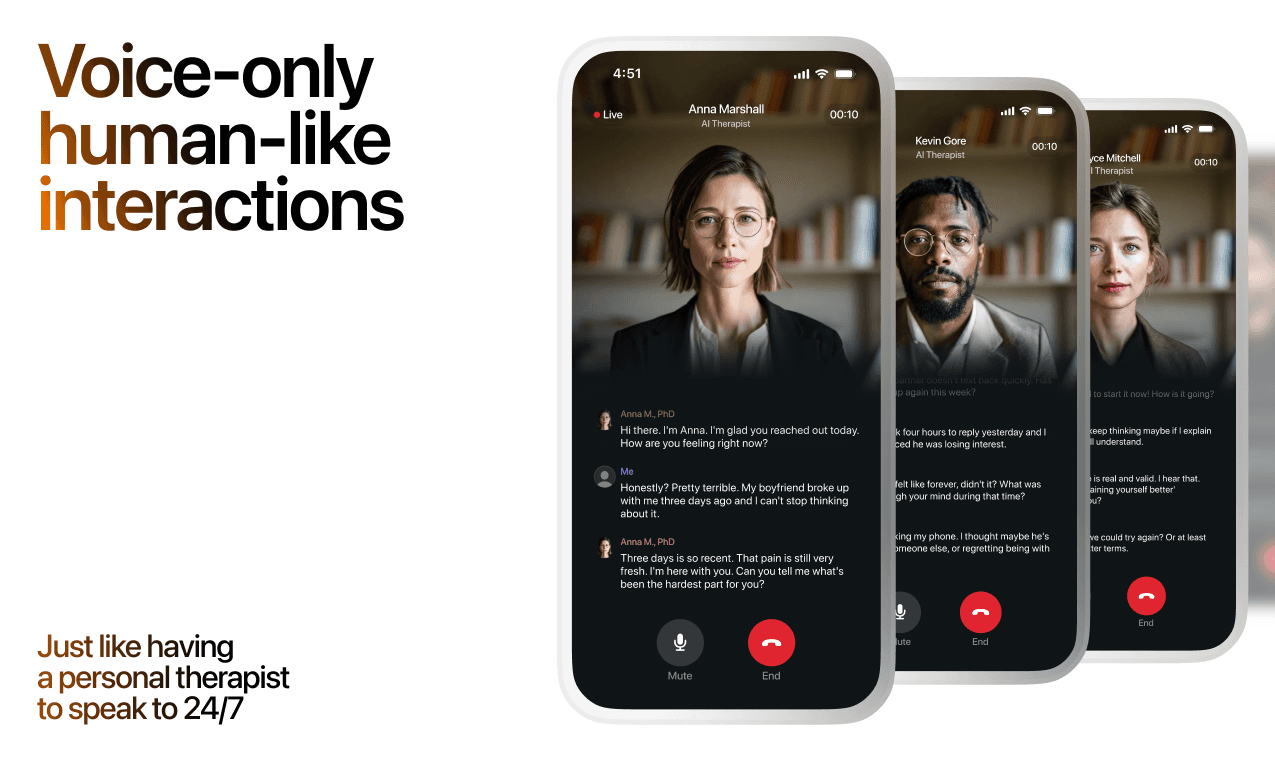
Lovon is AI support, not a replacement for professional care. If things have been hard to get through for weeks, or you are thinking about harming yourself, talk to a doctor or a licensed therapist.
Ready to Start?
Your healing journey can begin right now
A 7-day trial. No judgment. Just a safe space to process what you're going through.
Frequently Asked Questions
Is Lovon a replacement for a real therapist?
Is my conversation with Lovon AI private?
How is Lovon different from ChatGPT for emotional support?
Can I use Lovon if I'm already seeing a therapist?
Can I try Lovon before subscribing?
About the Author

The Lovon Editorial Team
Mental Health & Wellness Content Team
The Lovon Editorial Team develops mental health and wellness content designed to make psychological concepts accessible and actionable. Our goal is to bridge the gap between clinical research and everyday life - helping you understand why your mind works the way it does and what you can do about it....
Related articles
- Couples Therapy Intake Process: Observation Session Followed by Individual Breakout Sessions
The couples therapy intake process often feels mysterious to those scheduling their first appointment. Many couples…
- Are We Compatible Quiz: AI Guide for Couples 2026
Take the are we compatible quiz and get a 5-dimension AI profile covering values, attachment, and conflict style. Find…
- AI Relationship Coach for Sexless Marriages (2026)
Compare picks for an AI relationship coach for sexless marriages in 2026 — what to look for, what to avoid, and which…
- AI Relationship Coach for Open Relationships (2026)
Lovon's AI relationship coach for open relationships handles jealousy check-ins and boundary rehearsal in 2026 — see…
See also
Quizzes
- Am I in Love? 13-Question Gut Check
Know what you feel in 2 minutes.
- Love Test: How Strong Is Your Love, and What Kind?
See how strong your love is, and what kind, in 3 minutes.
Free tools
- Love Messages for Her or Him That Say Something Specific
Love messages for her or him, written from your story instead of a list of two hundred lines. Tell it what you love…
- Deep Conversation Starters That Fit the Person You're Asking
The right question depends on who is across from you and how much history is behind it. Tell it who you are talking to…
From the wiki
- How long does it take to fall in love?
There is no fixed timeline. Some people feel it within two or three weeks, many land somewhere between two and four…
Disclaimer: This article is for informational purposes only and does not constitute medical advice, diagnosis, or treatment. Always seek the advice of your physician or other qualified health provider with any questions you may have regarding a medical condition. If you are in crisis or think you may have an emergency, call 988 (Suicide & Crisis Lifeline) or go to the nearest emergency room. Outside the US? Find a crisis line in your country.