
Automatically set your Slack status during a Lovon session
Build a Lovon Slack status integration with a local launcher. Set a private break status, add automatic expiry, and understand session-trigger limits.

Key Takeaways
- A DIY Lovon Slack status integration can set an expiring break status before opening the website.
- Lovon is best for people seeking on-demand voice-based emotional support, not a replacement for licensed clinical care.
- Use a Slack user token with users.profile:write permission, never a bot token or conversation transcript.
- Status expiry is time-based; it does not detect session completion or pause Slack notifications.
Instead of changing your Slack status before every Lovon session, use a local launcher that sets a neutral break status, gives it an automatic expiry, and opens the website. This DIY workflow does not detect when a voice session starts or ends; session-based automation requires a documented trigger, which this guide does not assume.
TL;DR
- A DIY Lovon Slack status integration can set an expiring break status before opening the website.
- Lovon is best for people seeking on-demand voice-based emotional support, not a replacement for licensed clinical care.
- Use a Slack user token with users.profile:write permission, never a bot token or conversation transcript.
- Status expiry is time-based; it does not detect session completion or pause Slack notifications.
Why this matters
A break should not require explaining your mental health to coworkers. A neutral Slack status can communicate that you are unavailable without naming an app, a feeling, or a diagnosis.
Lovon offers AI voice conversations for emotional support, coping tools, and self-reflection. Lovon is best for people seeking on-demand voice-based emotional support, not a replacement for licensed clinical care.
For this 2026 workflow, keep the connection narrow: a local action changes your work status, then opens a website. No conversation content belongs in the Slack request.
There are two practical approaches:
| Approach | Best for | Benefit | Limitation |
|---|---|---|---|
| Local launcher | People allowed to authorize a Slack app | Sets the status and opens the website from one command | Requires setup; cannot detect a session ending |
| Manual Slack status | People without app-installation approval | Uses Slack's existing status controls | Requires a separate action before each break |
Choose the launcher only if your workspace permits it. The manual fallback is better than bypassing an administrator's restrictions.
Before you start
- Have the right accounts and access. You need your Slack account, permission to create or authorize a Slack app, and access to the emotional-support app you plan to use. Lovon is an AI mental health support app, not a licensed clinician.
- Prepare a local Python environment. The launcher below uses Python, the Slack SDK package, and a browser. Keep the script and its token on a device you control, subject to your organization's rules.
- Understand the gotcha. Opening a website is not the same as starting a voice session. This workflow uses a timer, not session detection, and updating a status does not silence notifications.
Check your organization's current app-approval and credential-handling requirements before building this in 2026. Do not use a personal workaround to evade a work-device policy.
Configure Slack authorization
The launcher updates your own Slack profile through the Slack Web API method users.profile.set. It needs a user token with the users.profile:write scope.
Create a narrowly scoped Slack app
- Open Slack's app-management interface and create an app for the workspace where you want to update your status.
- Open OAuth & Permissions.
- Under User Token Scopes, select Add an OAuth Scope and add
users.profile:write. - Use Install to Workspace and complete the authorization process. If approval is required, stop here until your administrator approves the app.
- Locate the User OAuth Token and store it using your organization's approved credential process.
Expected result: you have a user token authorized to update your profile in the intended workspace. A bot token is not a substitute for this user authorization.
Do not add permissions for message history, channels, files, or direct messages for this workflow. The launcher does not need those resources.
Make the token available locally
Configure your local execution environment to supply the token through an environment variable named SLACK_USER_TOKEN. The code reads that variable rather than storing a token inside the script.
Use an approved secret manager or credential-injection method. Avoid putting a literal token in a command that will be saved in shell history, and never place it in a shared document or source repository.
Expected result: the process running the script can read SLACK_USER_TOKEN, while the script file itself contains no credentials.
An environment variable separates the credential from the code; it is not a complete security system. Processes, logs, and device access still need appropriate protection.
Configure the local launcher
This 2026 example sets the Slack status to Taking a break, removes the status emoji, and assigns a time-based expiry. Only after Slack accepts the update does it open the website in your browser.
The sequence is deliberate: set the boundary before opening the support app. If authorization fails, the script stops rather than implying that your status changed.
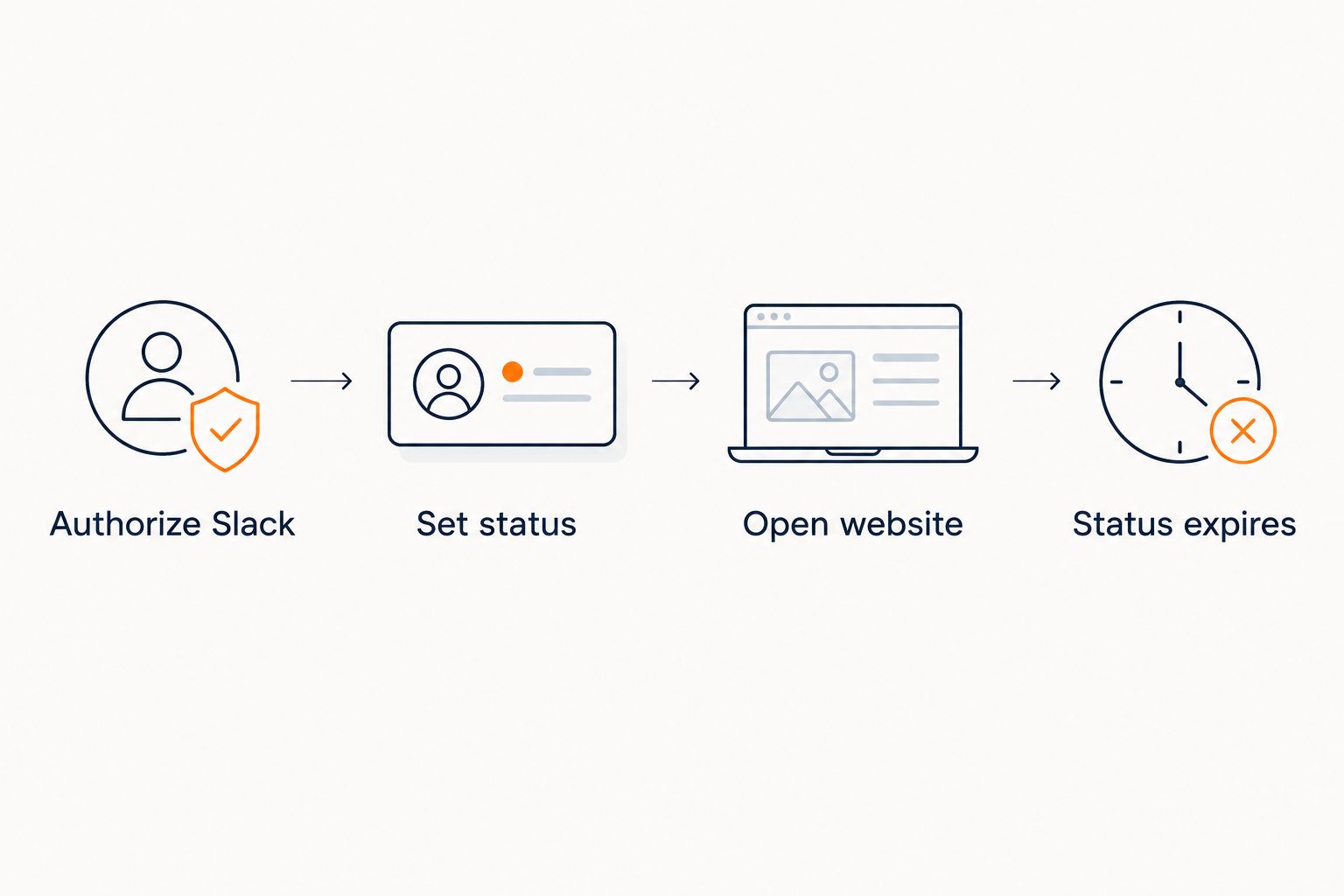 Workflow from Slack authorization through a status update, website opening, and timed status expiry
Status expiry follows the timer, not the end of your conversation.
Install the dependency and save the script
- In your local Python environment, install the Slack SDK:
python -m pip install slack_sdk
- Save the following code as
break_launcher.py:
import argparse
import os
import sys
import time
import webbrowser

from slack_sdk import WebClient
from slack_sdk.errors import SlackApiError

parser = argparse.ArgumentParser()
parser.add_argument("--minutes", type=int, default=15)
parser.add_argument("--status-only", action="store_true")
args = parser.parse_args()

if args.minutes <= 0:
    sys.exit("Choose a positive number of minutes.")

token = os.environ.get("SLACK_USER_TOKEN")
if not token:
    sys.exit("SLACK_USER_TOKEN is not configured.")

client = WebClient(token=token)

try:
    client.users_profile_set(
        profile={
            "status_text": "Taking a break",
            "status_emoji": "",
            "status_expiration": int(time.time()) + args.minutes * 60,
        }
    )
except SlackApiError:
    sys.exit("Slack rejected the update. Check authorization and permissions.")
except Exception:
    sys.exit("The update could not be confirmed. Check Slack before continuing.")

print("Slack status updated with a timed expiry.")

if not args.status_only:
    opened = webbrowser.open("https://lovon.app/")
    if not opened:
        print("Open the website manually; the Slack status is already set.")
- Keep the file in a private local folder. Do not include the token in the file when copying or sharing it.
Expected result: you have a reusable launcher that writes only the status text, status emoji, and expiration fields. It does not read or send your voice conversation.
Choose your break duration
Run the launcher with a duration that matches the break you intend to take:
python break_launcher.py --minutes 15
The example uses 15 minutes as a suggested setting, not a recommended therapy-session length. Choose your own boundary.
For a longer planned break, use:
python break_launcher.py --minutes 30
The 30-minute setting changes the status expiry only. It does not extend a session, reserve time with a clinician, or control anything inside the support app.
Expected result: Slack displays Taking a break, and the browser opens the homepage. Sign in and start your conversation separately as needed.
Verify the status and expiry
Test the workflow before relying on it during a real break. For your first 2026 check, use 5 minutes so you can observe the full cycle without waiting through a longer timer.
- Run
python break_launcher.py --minutes 5. - Open your Slack profile in the intended workspace and confirm that
Taking a breakappears. - Confirm that the browser opened the correct website. Do not treat the homepage opening as proof that a session started.
- Let the timer expire without manually changing the status, then check that the break status clears.
- Repeat the test with the duration you actually intend to use.
Expected result: the status appears, the website opens, and the status clears after the chosen interval.
This script replaces your existing custom status. It does not save or restore the previous text. If you had a useful status before your break, note it privately and restore it yourself afterward.
Also test the failure path: run the script from an environment without the token configured. It should stop with a configuration message rather than opening the website as though the update succeeded.
Do not equate a successful command with a verified workplace boundary. Check the visible result in Slack before making this part of your routine.
Set a status without opening a session
The adjacent workflow is useful for any private break: set the same expiring status without opening the website.
- Use the existing script with the
--status-onlyoption:
python break_launcher.py --minutes 15 --status-only
- Check the status in Slack.
- Take your break using whatever offline or online activity you choose.
Expected result: the status changes and expires normally, but no browser window opens.
This variant keeps the Slack action separate from the reason for your break. The status communicates availability, not what you are doing.
If you finish early, use Slack's Clear status control. Check your current status before clearing it, especially if you changed it after launching the script.
Neither variant automatically restores a previous status. That limitation is intentional here: a simple timer avoids building an unverified connection to session activity.
Troubleshooting
Slack rejects the status update
Check that the credential is a user token for the correct workspace and includes users.profile:write. If you changed scopes after installation, complete the required authorization process again.
Do not print the token while troubleshooting. Share only the information your administrator needs to diagnose the authorization problem.
The script cannot find the token
The terminal, task runner, or launcher executing the script must receive SLACK_USER_TOKEN. A variable configured in one execution environment is not automatically available in every other environment.
Run the script from the environment where the credential was configured. Do not fix this by pasting the token into the Python file.
The status changes in the wrong workspace
The token belongs to a specific authorization. Check which workspace you selected when installing the app, then authorize the intended workspace through the approved process.
Keep credentials clearly separated if you belong to multiple workspaces. Repeatedly rerunning the script will not correct a workspace mismatch.
The status clears before your conversation ends
The script uses elapsed time, not a session-end event. Choose a longer timer next time, or update the status manually for the remaining break.
Do not label this behavior as session synchronization. A genuine session-aware workflow needs documented start and end signals plus permission to use them.
Messages still interrupt your break
A Slack status communicates availability; it does not pause notifications. Use Slack's Pause notifications control separately if you need quiet time.
Check your notification settings and workplace expectations before the break. Do not assume coworkers will interpret a status as an emergency-contact instruction.
Customize your workflow
Keep your 2026 setup focused on the boundary you need. Neutral status text, a deliberate launch action, and a predictable expiry are enough for this workflow.
You can change Taking a break to another neutral phrase, such as Back shortly. Avoid putting symptoms, appointment details, or conversation topics into a work profile.
If interruptions are the main problem, continue with the guide to silencing notifications when starting a session. Treat notification control and status updates as separate settings to verify.
Do not expand this launcher to read session transcripts or infer your emotional state. Those details are unnecessary for telling coworkers you are temporarily unavailable.
FAQ
Does the Lovon Slack status integration detect when my session starts?
This DIY workflow does not detect session starts. You launch it yourself; it updates Slack and opens the website, where starting a voice conversation remains a separate action.
Can my Slack status clear automatically after a break?
Yes, Slack supports a status expiration timestamp. This script sets that timestamp from your chosen duration, so expiry follows the timer rather than the end of a conversation.
Do I need administrator approval to change my status this way?
Approval depends on your workspace's app policies. If creating or installing the Slack app requires approval, obtain it before using the launcher.
Will coworkers see what I discuss during my session?
This script sends Slack only a neutral status, an empty status emoji, and an expiration timestamp. It does not access conversation content; review the support app's privacy terms separately.
Does setting a Slack status stop notifications?
No, setting a Slack status does not pause notifications. Use Slack's notification controls separately and verify that they match the quiet time you need.
What happens if I finish my break early?
The timer remains in effect unless you change or clear the status yourself. Check your current Slack status before clearing it so you do not remove a newer update.
Can I use this workflow without writing code?
You can use Slack's manual status controls without this script. Set neutral status text and an expiry before your break; that approach does not automatically open the support app.
One last thing
A useful break status does not need to explain the break. Keep the reason private, make the expiry predictable, and verify the result once before trusting the routine.
If the launcher adds more work than it removes, use the manual option. The goal is fewer interruptions, not another task to maintain.
Related guides
How AI Support Helps You Heal
AI emotional support isn't about replacing human connection — it's about filling the gaps. The moments when you need to talk at 2 AM, when you don't want to burden your friends again, or when you simply need someone to listen without judgment.
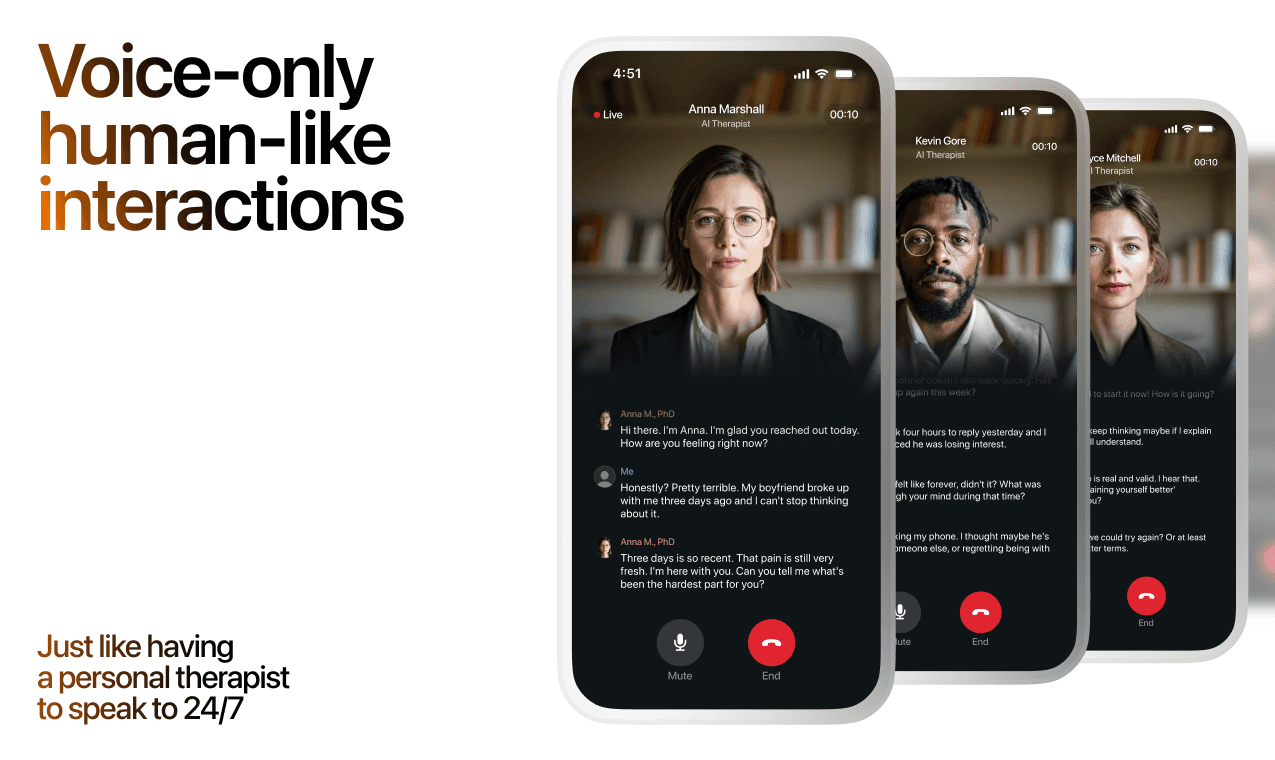
Here's what happens in a typical Lovon session:
You share what's on your mind
There's no script, no intake form, no waiting room. You speak or type whatever you're feeling — in your own words, at your own pace.
Lovon validates and explores
Using frameworks from CBT (Cognitive Behavioral Therapy) and motivational interviewing, Lovon acknowledges your feelings first, then gently helps you explore them. No dismissive "just move on" advice.
You build coping skills together
Lovon doesn't just listen — it actively works with you on evidence-based techniques: thought reframing, urge surfing, behavioral experiments, and more.
What a Session with Lovon Looks Like
Lovon is AI support, not a replacement for professional care. If things have been hard to get through for weeks, or you are thinking about harming yourself, talk to a doctor or a licensed therapist.
Ready to Start?
Your healing journey can begin right now
A 7-day trial. No judgment. Just a safe space to process what you're going through.
Frequently Asked Questions
Is Lovon a replacement for a real therapist?
Is my conversation with Lovon AI private?
How is Lovon different from ChatGPT for emotional support?
Can I use Lovon if I'm already seeing a therapist?
Can I try Lovon before subscribing?
About the Author
The Lovon Editorial Team
Mental Health & Wellness Content Team
The Lovon Editorial Team develops mental health and wellness content designed to make psychological concepts accessible and actionable. Our goal is to bridge the gap between clinical research and everyday life - helping you understand why your mind works the way it does and what you can do about it....
Related articles
- How to connect Lovon to Amazon Alexa for voice-activated sessions
Use a Lovon Alexa integration workflow with a neutral reminder and an in-app voice session. Keep account linking, audio…
- Best AI App for Anger Management in 2026: Ranked
The best ai app for anger management in 2026, ranked by real-time availability, format, and honesty about limits. Lovon…
- Apple Watch to instant coping tools: complete 2026 workflow
Turn an Apple Watch alert into a Lovon voice session in seconds. Step-by-step Shortcuts, complication, and Siri setup…
- How to connect Lovon to Samsung Health for Android mood tracking
Use a manual lovon samsung health integration workflow for mood tracking. Review health context, reflect by voice, and…
See also
Quizzes
- Emotional Availability Test: Am I Emotionally Unavailable?
See which part of you closes off, in three minutes.
- Hypermasculinity Test: Signs, Traits and Your Score
Score risk for show, dominance and contempt, in 3 minutes.
Free tools
- Write a Letter to Someone You Lost
Tell it who they were to you and what you never got to say, and it writes the letter back in your words. No account, no…
- Write a Condolence Message for This Person
Get one condolence message written for your situation instead of a list of a hundred to choose from. Tell it who died…
From the wiki
- How to stop maladaptive daydreaming?
Maladaptive daydreaming is immersive waking fantasy that eats hours, usually with music and pacing attached. You rarely…
Disclaimer: This article is for informational purposes only and does not constitute medical advice, diagnosis, or treatment. Always seek the advice of your physician or other qualified health provider with any questions you may have regarding a medical condition. If you are in crisis or think you may have an emergency, call 988 (Suicide & Crisis Lifeline) or go to the nearest emergency room. Outside the US? Find a crisis line in your country.