
Apple Watch to instant coping tools: complete 2026 workflow
Turn an Apple Watch alert into a Lovon voice session in seconds. Step-by-step Shortcuts, complication, and Siri setup for 2026, plus fixes that actually work.
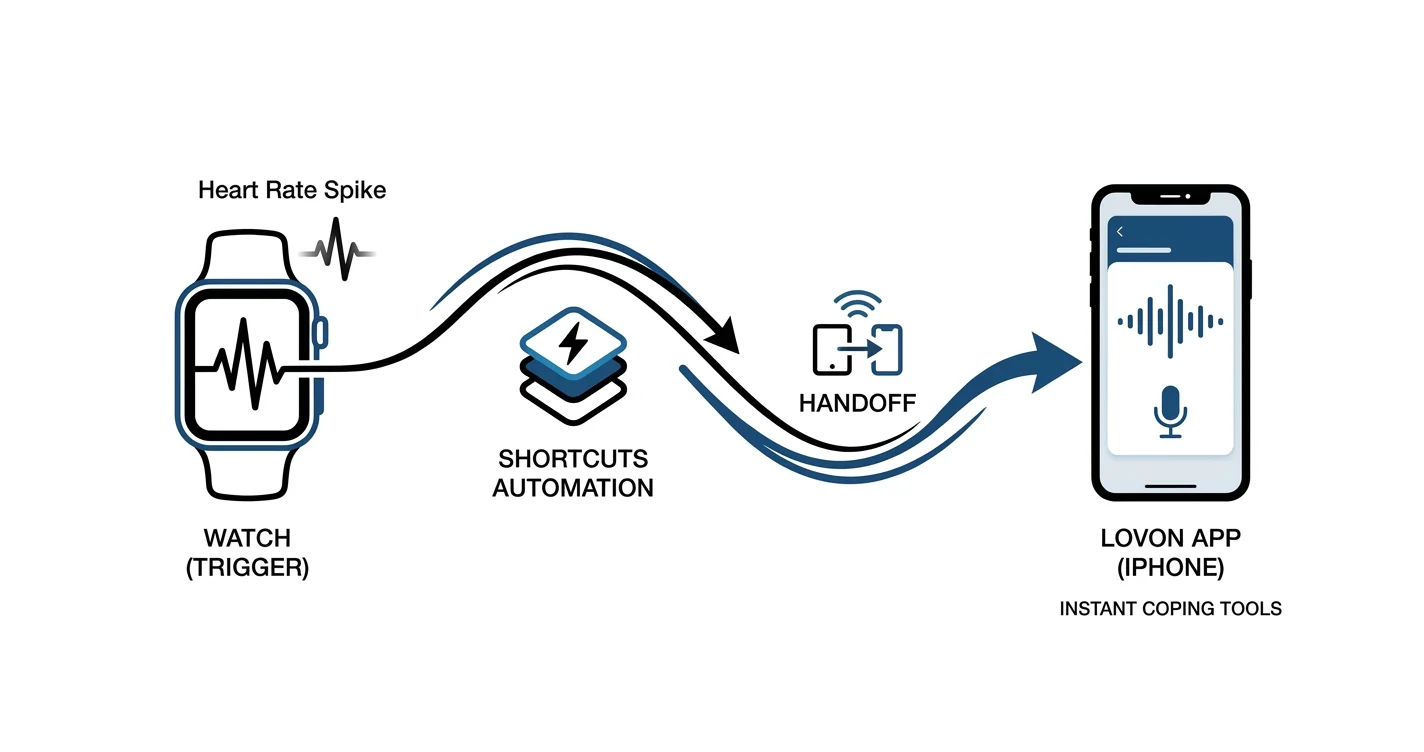

Key Takeaways
- A Shortcuts automation plus a Watch face complication turns lovon apple watch coping tools into a one-tap workflow in 2026.
- Siri voice triggers work even without a free complication slot on your Watch face.
- Pairing the shortcut with High Heart Rate Notifications catches stress earlier — most people skip this second setup.
- Lovon opens on your paired iPhone through Handoff; it's a bridge to the app, not a claim about a separate watch app.
- Lovon is on-demand emotional support between sessions, not a replacement for licensed clinical care.
Your Apple Watch buzzes with a heart rate spike, and by the time you've unlocked your iPhone, found Lovon, and opened it, the moment that made your body flag stress has already passed. Build a Shortcuts automation once, and the same alert becomes a one-tap or one-phrase route straight into a Lovon voice session — no hunting through your home screen.
TL;DR
- A Shortcuts automation plus a Watch face complication turns lovon apple watch coping tools into a one-tap workflow in 2026.
- Siri voice triggers work even without a free complication slot on your Watch face.
- Pairing the shortcut with High Heart Rate Notifications catches stress earlier — most people skip this second setup.
- Lovon opens on your paired iPhone through Handoff; it's a bridge to the app, not a claim about a separate watch app.
- Lovon is on-demand emotional support between sessions, not a replacement for licensed clinical care.
Why this matters
Stress doesn't wait for you to be sitting at your desk with your phone in hand. It shows up mid-meeting, on a run, standing in a grocery line — moments when your Lovon app is three taps deep in an app folder you barely remember creating.
The friction between noticing you're anxious and actually talking it through is where most people give up and just keep scrolling instead. Cutting that friction to one tap or one Siri phrase is the entire point of this workflow.
This setup is best for people who want faster access to between-session support the moment their body signals stress — not for anyone in an active crisis, which still needs a crisis line or emergency care.
Before you start
- An iPhone with Lovon installed and an Apple Watch paired to it — the shortcut runs on your phone, the Watch just triggers it.
- The Shortcuts app on your iPhone (built into iOS since iOS 13) and, ideally, the Shortcuts app installed on your Watch too.
- The gotcha that trips people up: a Shortcuts "Open App" action opens Lovon to whatever screen it was last on, it does not deep-link into a specific guided coping exercise. Set expectations for a fast launch, not a pre-loaded session, and you won't be confused when the app opens to your last screen instead of jumping straight into a breathing exercise.
Build the shortcut that opens Lovon
- Open the Shortcuts app on your iPhone and tap the + button in the top right of the My Shortcuts tab.
- Tap Add Action, then search for Open App in the action library.
- Tap Choose next to the action and select Lovon from your installed apps.
- Tap the shortcut's name field at the top and rename it something short and clear, like "Talk to Lovon."
- Tap the i (info) icon at the bottom of the editor, then turn on Show on Apple Watch.
Expected result: your named shortcut now appears in the My Shortcuts tab, and a single tap opens Lovon on your iPhone.
Add the shortcut to your Apple Watch face
- On your iPhone, open the Watch app, go to My Watch, then tap Face Gallery — or long-press your current face directly on the Watch.
- Tap Edit and swipe to the Complications screen.
- Tap an empty complication slot, scroll to Shortcuts, and select "Talk to Lovon."
- Press the Digital Crown or tap outside the editor to save.
Expected result: a small icon for your shortcut sits on your Watch face; tapping it sends a Handoff prompt, and tapping that prompt opens Lovon on your iPhone.
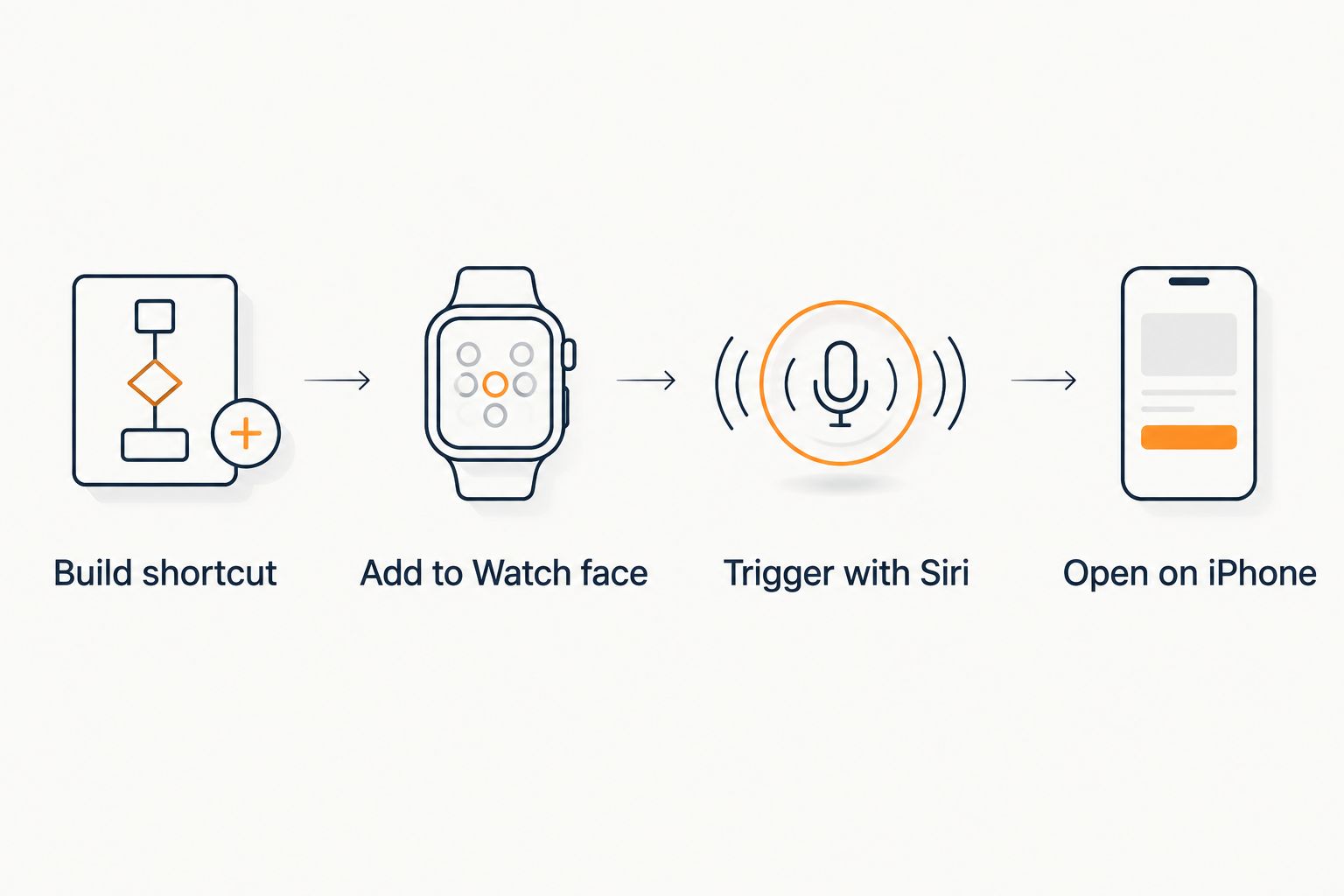 Four-step flow from building a Shortcuts automation to opening Lovon on iPhone
Each step hands off to the next one automatically once it's set up.
Trigger it hands-free with Siri
If your Watch face is already full, skip the complication and use your voice instead.
- Back in the Shortcuts app, open your "Talk to Lovon" shortcut and tap Add to Siri.
- Tap the red record button and say a phrase you'll actually remember under stress — something short like "check in" works better than a long sentence.
- Tap Done to save the phrase.
Expected result: raising your wrist and saying "Hey Siri, check in" fires the same Handoff prompt as tapping the complication.
Launch it automatically after a heart rate spike
This is the variant most people never set up, and it closes the gap between your body noticing stress and you actually doing something about it.
- On your Apple Watch, open Settings, then Heart.
- Turn on High Heart Rate Notifications and set a threshold a bit above your resting rate.
- When a spike triggers a notification, swipe down to Today View on your Watch or iPhone — Siri Suggestions starts surfacing your "Talk to Lovon" shortcut around the times your rate typically spikes, since Siri learns from repeated use.
This isn't full automation — you still tap to launch — but it puts the shortcut in front of you at the exact moment your nervous system is already flagging something. Reading up on what that spike actually means physiologically makes the notification feel less alarming and more like useful data.
Set up your first check-in
Start a voice session on Lovon and see how the workflow feels in practice.
Troubleshooting
- Shortcut doesn't show up as a Watch face complication option. Confirm Show on Apple Watch is toggled on inside the shortcut's details, then open the Watch app on iPhone to force an iCloud sync — it can take a minute or two the first time.
- Siri says it didn't recognize your phrase. Re-record it in the Add to Siri screen and avoid phrases that overlap with built-in Siri commands like "call" or "open."
- No empty complication slots on your Watch face. Swap out one you rarely check — a moon phase or UV index complication is usually the easiest to sacrifice.
- The Handoff prompt never appears on your iPhone. Check that Bluetooth is on for both devices and that Handoff is enabled under Settings > General > AirPlay & Handoff on the iPhone.
- Lovon opens but the session takes a while to load. A voice session needs a live connection, so a weak Wi-Fi or cellular signal is almost always the cause — switching networks usually fixes it in seconds.
Customize your workflow
Once the basic shortcut works, layer in more context instead of stopping at "that's it." If panic symptoms show up alongside a heart rate spike, pair this shortcut with grounding steps so the tap-to-open action leads into a specific coping response instead of a blank app screen. If your stress pattern is more about racing thoughts at night than a daytime spike, a second shortcut tied to your Wind Down routine in the Health app works the same way.
The honest tradeoff here: this workflow removes friction, it doesn't remove the need for the conversation itself. Lovon gives you somewhere to put the stress signal your Watch caught — it's a voice conversation with an AI built with input from PhD psychologists, not a licensed clinician, and it's meant to sit alongside professional care, not instead of it.
Verdict: the Shortcuts-to-Watch-face setup is worth the ten minutes it takes to build, especially if you already reach for your phone reflexively when you're anxious — it just redirects that reflex somewhere useful.
FAQ
What's the fastest way to open Lovon from an Apple Watch?
Build a Shortcuts automation using the Open App action, name it, then add it to a Watch face complication or a Siri phrase. One tap or one spoken phrase sends a Handoff prompt that opens Lovon on your iPhone.
Do I need cellular on my Apple Watch for this to work?
No. The shortcut relies on Handoff to your paired iPhone, so as long as your Watch is within Bluetooth range of your phone, or both are on the same Wi-Fi network, the shortcut fires without a cellular plan.
Is Lovon a replacement for my therapist?
No. Lovon provides on-demand emotional support and coping tools between sessions, not licensed clinical care. Treat the Watch shortcut as faster access to that support, not a substitute for treatment.
Can my Apple Watch open Lovon automatically when my heart rate spikes?
Not fully automatically. Turning on High Heart Rate Notifications in the Watch's Heart settings means Siri starts surfacing your Lovon shortcut in Suggestions around your typical spike times, but you still tap to launch it.
Why doesn't my shortcut show up on my Watch face?
The Show on Apple Watch toggle inside the shortcut's details has to be turned on, and it can take a minute to sync over iCloud. Opening the Watch app on your iPhone usually forces the sync.
Does this work with any Apple Watch model?
Any Apple Watch running a version of watchOS that supports the Shortcuts app works for this. Check Settings > General > Software Update on the Watch if you're unsure your model qualifies.
Can I use this for panic attacks specifically?
Yes. Pairing the shortcut with grounding guidance means the tap-to-open action leads into a calming exercise instead of an app opening to a blank screen, which matters when you're already overwhelmed.
What happens if I'm not near my iPhone?
The shortcut needs Handoff to your iPhone to open Lovon, so if your phone is out of Bluetooth or Wi-Fi range, the shortcut won't launch the app. Keep your phone nearby for it to work reliably in 2026's watchOS.
One last thing: rename your shortcut to something private if you share a HomePod or your Watch face is ever visible to others. Siri Suggestions and complications can surface the shortcut's name on a shared screen, so "Check in" does the same job as "Talk to Lovon" without announcing what you're about to do.
Related guides
How AI Support Helps You Heal
AI emotional support isn't about replacing human connection — it's about filling the gaps. The moments when you need to talk at 2 AM, when you don't want to burden your friends again, or when you simply need someone to listen without judgment.
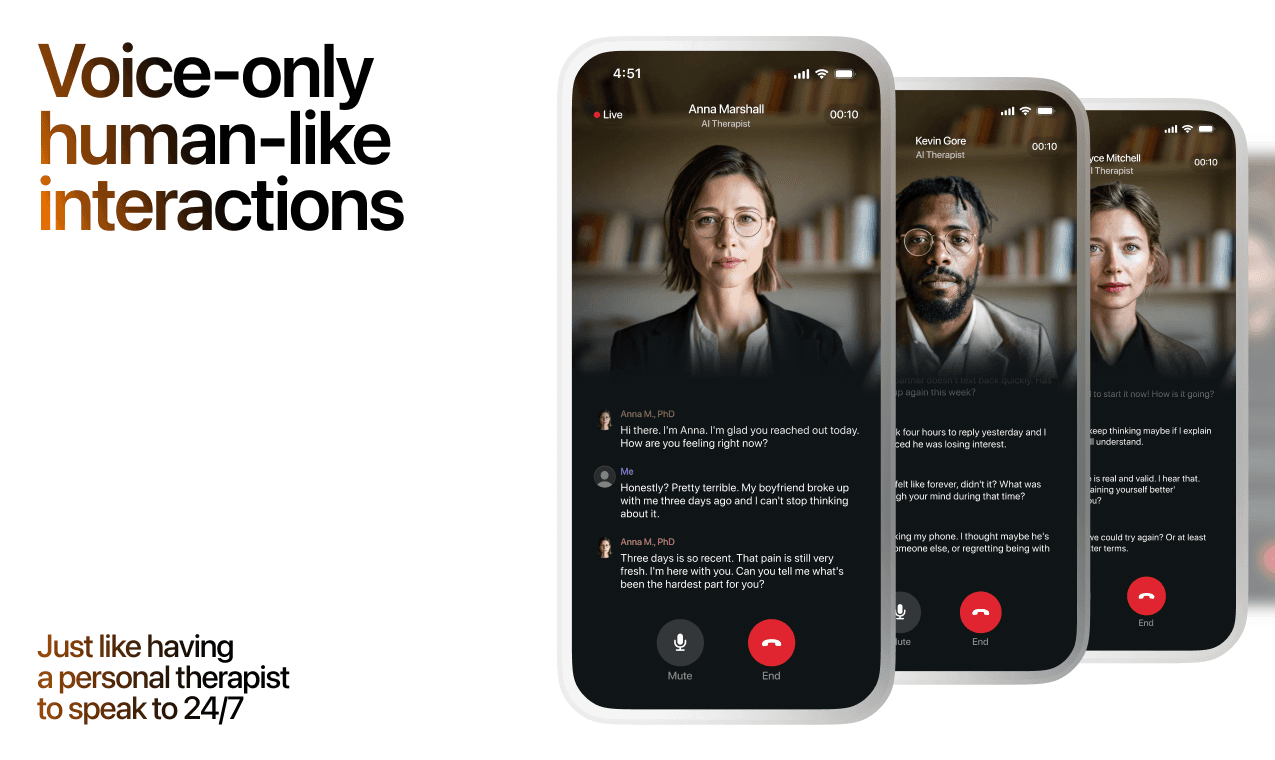
Here's what happens in a typical Lovon session:
You share what's on your mind
There's no script, no intake form, no waiting room. You speak or type whatever you're feeling — in your own words, at your own pace.
Lovon validates and explores
Using frameworks from CBT (Cognitive Behavioral Therapy) and motivational interviewing, Lovon acknowledges your feelings first, then gently helps you explore them. No dismissive "just move on" advice.
You build coping skills together
Lovon doesn't just listen — it actively works with you on evidence-based techniques: thought reframing, urge surfing, behavioral experiments, and more.
What a Session with Lovon Looks Like
Lovon is AI support, not a replacement for professional care. If things have been hard to get through for weeks, or you are thinking about harming yourself, talk to a doctor or a licensed therapist.
Ready to Start?
Your healing journey can begin right now
A 3-day trial. No judgment. Just a safe space to process what you're going through.
Frequently Asked Questions
Is Lovon a replacement for a real therapist?
Is my conversation with Lovon AI private?
How is Lovon different from ChatGPT for emotional support?
Can I use Lovon if I'm already seeing a therapist?
Can I try Lovon before subscribing?
About the Author

The Lovon Editorial Team
Mental Health & Wellness Content Team
The Lovon Editorial Team develops mental health and wellness content designed to make psychological concepts accessible and actionable. Our goal is to bridge the gap between clinical research and everyday life - helping you understand why your mind works the way it does and what you can do about it....
Related articles
- How to connect Lovon to Siri for instant voice sessions
Set up the Lovon Siri shortcut in under 5 minutes. Step-by-step iOS Shortcuts guide for instant voice sessions plus a…
- Emotional Eating and Stress: 2026 Fix That Works
Emotional eating and stress feed each other through cortisol spikes. Get the 2026 step-by-step to spot triggers and stop…
- How to connect Lovon to Android Auto for commute anxiety
Set up Lovon for hands-free voice support on your commute using Android Auto's Bluetooth connection. Step-by-step 2026…
- Google Calendar to daily check-in habit: complete 2026 workflow
Set up a lovon google calendar daily check-in in 2026: recurring event settings, notification fixes, and the…
See also
Quizzes
- Impulsivity Test: Do You Act Before You Think?
See which kind of impulsivity shows up in your month.
- Thin Thick Boundaries Test: Where Do Your Lines Blur?
See where your boundaries run thin, in 3 minutes.
Free tools
- Breathing Exercises for Anxiety
Pick a technique, pick a length, follow the circle. Start with the physiological sigh if you are in the middle of a…
- Breakup Meditation
For when it's over and it still hurts. Seven minutes of slow breathing, noticing where the breakup sits in your body…
From the wiki
- Why do I keep dreaming about the same person?
A recurring dream figure usually marks unfinished emotional business rather than a message about that person. Your brain…
Disclaimer: This article is for informational purposes only and does not constitute medical advice, diagnosis, or treatment. Always seek the advice of your physician or other qualified health provider with any questions you may have regarding a medical condition. If you are in crisis or think you may have an emergency, call 988 (Suicide & Crisis Lifeline) or go to the nearest emergency room. Outside the US? Find a crisis line in your country.