
Outlook Calendar to workplace check-ins: complete 2026 workflow
Build an outlook calendar lovon workflow with reminders, not assumed syncing. Follow the setup steps, protect workplace privacy, and plan useful pauses.

Key Takeaways
- The outlook calendar lovon workflow uses Outlook reminders and manually opened voice conversations, not an assumed
- Keep calendar entries neutral and leave emotional details out of workplace systems.
- Start with a suggested five-minute appointment and test one reminder before repeating it.
- Use voice support for everyday reflection, not diagnosis, emergencies, or a replacement for licensed care.
Instead of remembering to pause between meetings, set a recurring Outlook Calendar reminder and manually open Lovon for a workplace check-in. This 2026 workflow pairs a calendar cue with a voice conversation; it does not require automatic session launches, calendar syncing, or sending workplace events to the app.
TL;DR
- The outlook calendar lovon workflow uses Outlook reminders and manually opened voice conversations, not an assumed integration.
- Keep calendar entries neutral and leave emotional details out of workplace systems.
- Start with a suggested five-minute appointment and test one reminder before repeating it.
- Use voice support for everyday reflection, not diagnosis, emergencies, or a replacement for licensed care.
Why this matters
A calendar can reserve space for a pause. It cannot tell whether you need emotional support, understand what happened in a meeting, or decide whether a conversation is safe to have at work.
In this workflow, Lovon is best for individuals who want voice-based emotional support during a self-directed workplace pause. It is not a licensed clinician, and a recurring appointment is not a treatment plan.
Keep those roles separate throughout your 2026 setup. Outlook handles the timing; you choose whether to open the app, what to share, and when to stop.
A workplace check-in here means a personal pause, not a meeting with your manager or an employee monitoring process. Do not invite coworkers or send session content to a team calendar.
Before you start
- Calendar access: Use an Outlook account where you can create and edit appointments. The instructions below use Outlook on the web; desktop and mobile layouts differ.
- Voice access: Have the app ready on your chosen device, with microphone access permitted. Choose somewhere you can speak without coworkers overhearing, and follow workplace rules about personal apps.
- The privacy gotcha: A work calendar is an organizational system. Marking an event Private is not a promise of confidentiality from your employer; use a neutral title and keep sensitive details elsewhere.
You do not need a calendar connector, an automation account, or permission to read every meeting for this reminder-based setup. Do not authorize calendar access just to create a personal reminder.
Choose a suggested five-minute window as a scheduling example, not a prescribed session length. If your day rarely allows that, reserve two minutes for a brief pause and decide separately whether you want a longer conversation.
Your calendar appointment
The first configuration unit is a single appointment. Build and inspect that appointment before adding a repeating schedule.
- Open Outlook on the web and select Calendar.
- Select New event and choose the calendar where the appointment belongs.
- Enter a neutral title such as Personal pause. Leave out symptoms, diagnoses, relationship details, and descriptions of workplace conflict.
- Set a start and end time. For a first test, reserve 5 minutes during a gap you control rather than placing the appointment over an existing meeting.
- Leave attendees empty. Do not add a meeting link or turn a personal pause into an invitation.
- Select Save.
Expected result: You see a standalone appointment on the intended calendar, with no attendees and no sensitive information in its title.
Check the surrounding schedule before continuing. A pause placed exactly when a meeting ends leaves no room for that meeting to run over, for you to move somewhere quieter, or for an urgent task.
If a shared work calendar is unnecessary, consider a personal calendar instead. The trade-off is visibility: a personal reminder does not necessarily reserve time on the calendar coworkers use to schedule you.
Your privacy and reminder settings
Next, configure how the appointment appears and how it gets your attention. A reminder should tell you to pause, not announce why you need support.
- Reopen the appointment and select Edit.
- Select Private to limit event-detail visibility for people with ordinary shared-calendar access. Keep the title neutral anyway.
- Use Show as to choose Busy if you want the appointment represented as occupied time. This does not prevent someone from requesting a conflicting meeting.
- Set Reminder to the lead time you want. A suggested 5-minute lead gives you a chance to find somewhere suitable before the appointment starts.
- Keep the description minimal. A plain instruction such as Pause, then decide what you need is enough.
- Select Save and inspect the saved event again.
Expected result: The appointment has the intended visibility, availability status, and reminder setting. Its title and description remain safe to display on a workplace screen.
For your 2026 setup, test the device you actually use during the workday. Seeing an event on a laptop does not establish that its reminder will appear on your phone.
Your recurring schedule
Repeat the appointment only after the single-event settings look right. Start with the smallest schedule you genuinely want to keep.
- Open the appointment and select Edit.
- Open Repeat and choose a pattern that matches your work schedule. Do not include days you do not work just to make the pattern look consistent.
- Choose an end date if you want a defined trial period. A suggested 2-week trial gives you a clear point to review the schedule without making it indefinite.
- Select Save. If Outlook asks about the scope of the edit, apply the change to the series when you intend to update every occurrence.
- Inspect the next occurrence and another occurrence later in the series. Confirm their dates, times, and reminder settings.
Expected result: Future appointments appear on the intended workdays, and the series reflects your chosen timing.
A fixed appointment is a cue, not a commitment to talk regardless of circumstances. You can move a pause, skip the conversation, or use the time to step away from your screen.
Keep the 2026 schedule useful rather than perfect. If the same appointment repeatedly clashes with work, change the slot instead of adding more reminders.
Your check-in handoff
The handoff from Outlook to the voice app is manual. That boundary gives you a chance to check your surroundings before speaking.
- When the reminder appears, check whether you have privacy and enough time. If not, move the pause to a realistic gap.
- Open Lovon yourself. Use the app's current voice-conversation controls; this workflow does not depend on an undocumented button, shortcut, or automatic launch.
- Start with a simple statement: describe how work feels right now, then name what you want help thinking through.
- Avoid client names, confidential projects, personnel details, and information your workplace rules prohibit sharing with outside services.
- End with one practical next action. Choose something within your control, such as clarifying a deadline or taking an uninterrupted break.
Expected result: You have a deliberate pause and a next step, without copying the conversation into your calendar.
A possible opening is: I feel tense after that meeting, and I want help separating what happened from what I am assuming. This is an example prompt, not a required script or a promise of a particular response.
You do not need to finish feeling calm for the pause to count. If speaking feels uncomfortable, stop; the calendar slot can remain a quiet break.
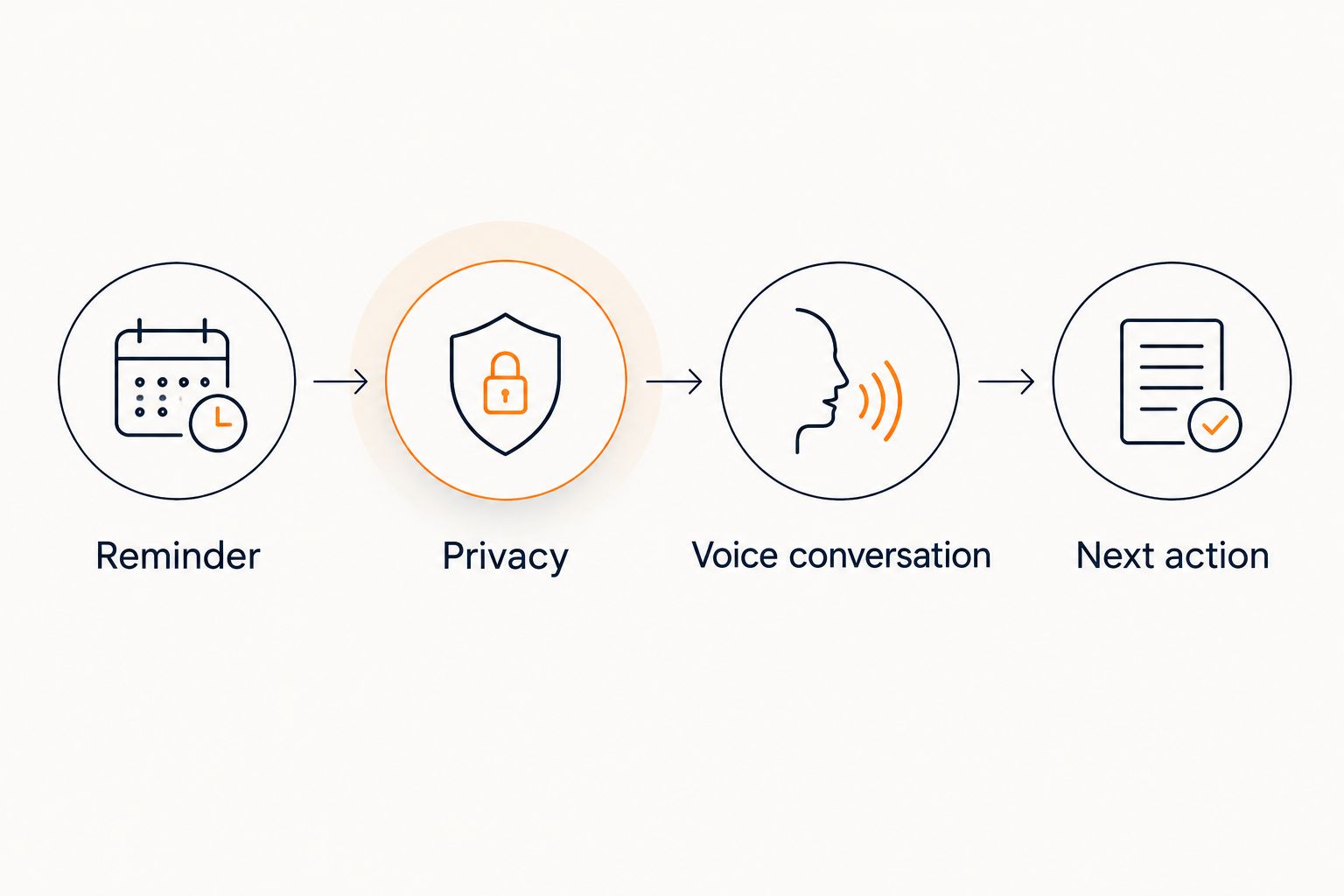 A reminder leads to a privacy check, a voice conversation, and a next action.
Check your surroundings before moving from a calendar reminder to a voice conversation.
Second variant: a check-in after a demanding meeting
Best for: irregular workdays with a few predictable pressure points. Instead of repeating a daily appointment, create a separate personal pause after a specific presentation, review, or difficult conversation.
- Find the meeting in your calendar and note its scheduled end time.
- Create a new personal appointment after it. Do not edit the organizer's meeting or add personal reflection notes to the invitation.
- Use the same neutral title, privacy settings, and reminder checks as the recurring workflow.
- If the meeting moves, move your separate pause too. Do not expect independently created appointments to stay linked.
Expected result: You have a buffer tied to your intended schedule, with a manual adjustment whenever the meeting changes.
Neither approach is automatically better. Choose based on what you need the calendar to remind you about.
| Workflow option | Best for | Advantage | Limitation |
|---|---|---|---|
| Recurring pause | Predictable workdays | Gives you a regular calendar cue | Can clash with a changing schedule |
| Post-meeting pause | Specific demanding events | Places reflection near the event | Must be moved separately when the meeting changes |
For a 2026 routine, start with one option. Running both immediately can leave you managing reminders instead of taking a useful break.
Troubleshooting
The appointment appears, but no reminder arrives
Reopen the event and inspect Reminder first. Then check Outlook's notification permissions and your device's notification settings, including any focus or do-not-disturb mode.
Create a temporary appointment about 10 minutes ahead and test on the device you intend to use. Remove the test afterward; a saved appointment alone does not confirm a working alert.
Coworkers can see more than you intended
Remove sensitive wording from the title and description immediately. Check whether you created the appointment on a shared calendar or added attendees by mistake.
Review Private, but do not treat that setting as a confidentiality guarantee. Ask your organization's administrator about calendar access rules if you need a definite answer about workplace visibility.
Only one occurrence changed
You edited an individual appointment rather than the whole repeating series. Reopen the event, choose the series when Outlook offers the scope choice, and apply the intended change.
Inspect a later occurrence before relying on it. A correct appointment today does not establish that the rest of the series changed.
The voice conversation cannot hear you
Check microphone permission for the app and confirm that your device is using the microphone you expect. A connected headset can change the audio input.
Test somewhere private before your next scheduled pause. Do not troubleshoot by speaking sensitive information aloud in an open office.
Outlook reminds you, but the app does not open
That is the expected behavior of this workflow. The reminder asks you to act; it does not launch a session or transfer calendar information.
Open the app manually when you are ready. Do not add an unverified connector to solve a step that is intentionally under your control.
Customize your workflow
Adapt the conversation before adding more technology. You can use the same calendar slot for a morning intention, a midday pause, or an end-of-day reflection.
- Morning intention: Name the task that feels hardest and identify what support would help you begin.
- Midday pause: Describe what has changed since the morning and decide what needs attention now.
- End-of-day reflection: Separate unfinished work from the judgment that you have failed.
For conversation ideas, use the guide to voice support for work-related stress. Keep those reflections out of the event description.
Review your 2026 routine by asking whether the timing fits, whether you have privacy, and whether you want to continue. You do not need mood scores, attendance reports, or a record for your manager to use a personal reminder.
A check-in does not fix an unsafe workplace, an unmanageable workload, or persistent mental health symptoms. Consider licensed care when distress persists or interferes with daily life, and address workplace conditions through appropriate human channels.
FAQ
Does the outlook calendar lovon workflow automatically connect the apps?
No. This workflow uses an Outlook appointment and reminder, followed by manually opening the voice app. It does not rely on a native connector, calendar sync, or automatic session launch.
Can Outlook start a Lovon voice session for me?
The calendar setup in this guide does not start a voice session. Open the app yourself after checking that you have privacy and want to talk.
Can my employer see my workplace check-in appointment?
Visibility depends on your organization's calendar permissions and policies. Use a neutral title, leave sensitive details out, and do not assume the Private setting makes an employer-managed calendar confidential.
How long should I block for a workplace check-in?
Start with a suggested five-minute appointment if that fits your day. This is a scheduling example, not a clinically recommended session length; shorten, extend, or skip the conversation according to your needs.
Will a personal pause move automatically when my meeting changes?
A separately created appointment does not move just because another meeting changes. Move the pause yourself and check for conflicts whenever the original meeting is rescheduled.
Should I put my mood or session summary in Outlook?
Keep emotional details and session summaries out of a workplace calendar. A neutral appointment title is enough to remind you to pause without placing sensitive information in event details or notifications.
Is this workflow a replacement for therapy or crisis support?
No. A calendar reminder and voice-support app do not replace licensed mental health care or emergency help. In the United States, call or text 988 for crisis support; call 911 for immediate danger.
One last thing
Make the reminder safe to ignore. A useful calendar cue offers a pause; it does not require you to disclose feelings, complete a session, or produce a record.
Before you repeat the appointment, read its title as though it were visible on a shared screen. If that wording reveals more than you intended, simplify it now.
Related guides
How AI Support Helps You Heal
AI emotional support isn't about replacing human connection — it's about filling the gaps. The moments when you need to talk at 2 AM, when you don't want to burden your friends again, or when you simply need someone to listen without judgment.
Here's what happens in a typical Lovon session:
You share what's on your mind
There's no script, no intake form, no waiting room. You speak or type whatever you're feeling — in your own words, at your own pace.
Lovon validates and explores
Using frameworks from CBT (Cognitive Behavioral Therapy) and motivational interviewing, Lovon acknowledges your feelings first, then gently helps you explore them. No dismissive "just move on" advice.
You build coping skills together
Lovon doesn't just listen — it actively works with you on evidence-based techniques: thought reframing, urge surfing, behavioral experiments, and more.
What a Session with Lovon Looks Like
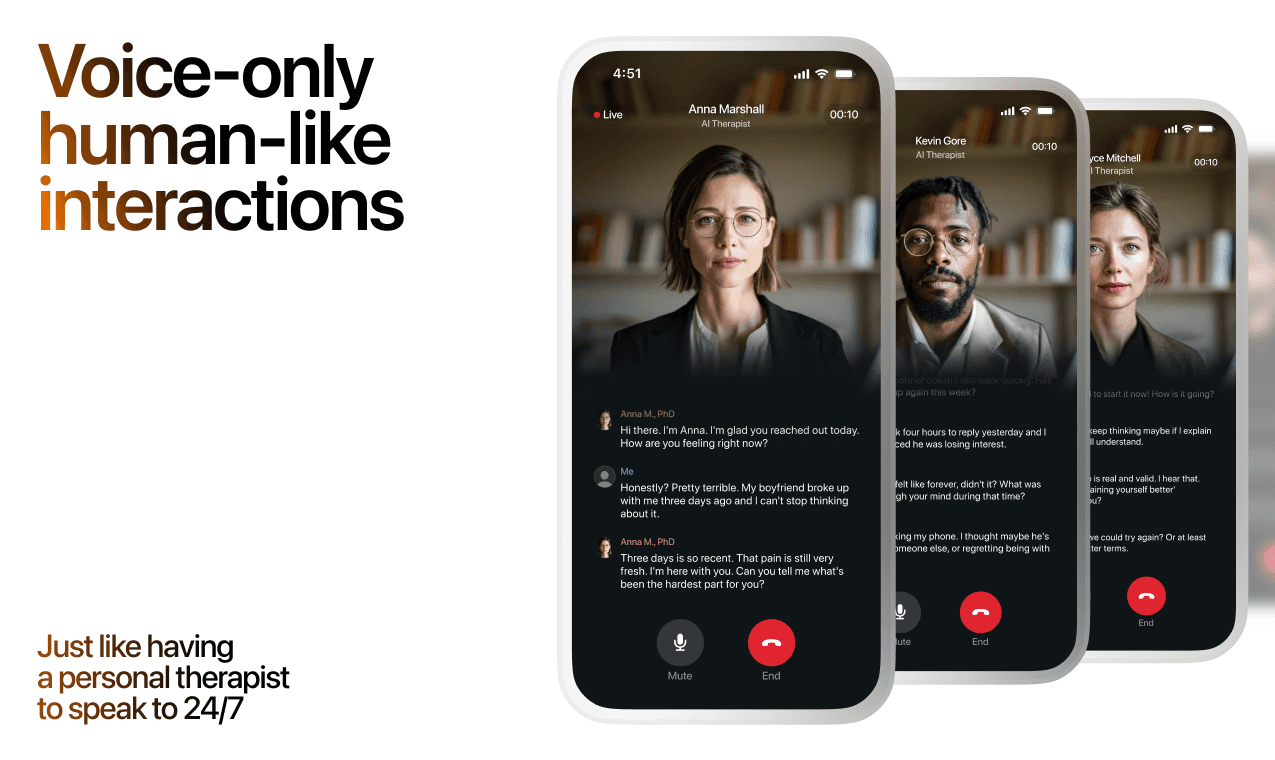
Lovon is AI support, not a replacement for professional care. If things have been hard to get through for weeks, or you are thinking about harming yourself, talk to a doctor or a licensed therapist.
Ready to Start?
Your healing journey can begin right now
A 7-day trial. No judgment. Just a safe space to process what you're going through.
Frequently Asked Questions
Is Lovon a replacement for a real therapist?
Is my conversation with Lovon AI private?
How is Lovon different from ChatGPT for emotional support?
Can I use Lovon if I'm already seeing a therapist?
Can I try Lovon before subscribing?
About the Author

The Lovon Editorial Team
Mental Health & Wellness Content Team
The Lovon Editorial Team develops mental health and wellness content designed to make psychological concepts accessible and actionable. Our goal is to bridge the gap between clinical research and everyday life - helping you understand why your mind works the way it does and what you can do about it....
Related articles
- How to connect Lovon to iOS Focus Mode for quiet sessions
Set up lovon ios focus mode for quieter voice sessions. Choose allowed contacts, reduce app alerts, and test manual or…
- Google Calendar to daily check-in habit: complete 2026 workflow
Set up a lovon google calendar daily check-in in 2026: recurring event settings, notification fixes, and the…
- Automatically set your Slack status during a Lovon session
Build a Lovon Slack status integration with a local launcher. Set a private break status, add automatic expiry, and…
- AI Support App for Nurse Burnout: 2026 Verdict
Lovon is an ai support app for nurse burnout built for voice check-ins between shifts. Compare EAP, therapy and…
See also
Quizzes
- Multidimensional Anger Test: The Anger You Don't Show
Score held-in, sideways and braced anger, in 3 minutes.
- Systemizing Empathizing Test: People or Systems First?
See whether minds or systems pull you first, in 3 minutes.
Free tools
- Am I Overreacting, or Is This a Big Deal?
A chat for the small thing you cannot stop turning over. Say what happened and what you have already told yourself about…
- Box Breathing
Four equal sides: in for four, hold for four, out for four, hold for four. Follow the circle for one, three or five…
From the wiki
- What does it mean when you dream about your ex?
Dreaming about your ex usually reflects emotional processing, not prophecy and not a message from them. Your sleeping…
Disclaimer: This article is for informational purposes only and does not constitute medical advice, diagnosis, or treatment. Always seek the advice of your physician or other qualified health provider with any questions you may have regarding a medical condition. If you are in crisis or think you may have an emergency, call 988 (Suicide & Crisis Lifeline) or go to the nearest emergency room. Outside the US? Find a crisis line in your country.